
How To Switch From iPhone To Android At Ease: Contacts, Files, And More!

So you’ve decided to switch your mobile. It might be possible you’ve enmeshed in Apple’s operating system. Well, whatever the reason is, we can’t deny the fact that iOS is a bit complicated to operate, and now how to switch from iPhone to android may leave you struggling.
In the time of smartphones, switching between phones is more than just transferring your SIM’s and memory cards. Today, the phone carries lots of data including contacts, files, applications, etc that is mandatory to transfer in your new phone to resume your functioning at ease.
But with a bit of preparation and tips, you can move your data from one smartphone to another without using a computer, data cable, or any other file transferring device, sometimes. So if you wonder how to transfer data from iPhone to Android without computer, then worry not! Techtorevicew is always there to help its visitors with proven and purposeful tips to make their tasks easier than ever before.
This time we’re here with the best iPhone to Android software that helps you to have a backup of your most stuff without hitting any other device.
Google Drive is a popular yet helpful backup facility these days. You can transfer all kinds of data with the help of Google Drive without losing and putting it at any risk. Let’s check the following details on how to transfer your files from iPhone to Android.
#Use Google Drive
Google Drive app is the easiest way to transfer three key kinds of data from iOS to Android without any interruption: Camera Roll, Contacts, and Calendar. Simply install the Google Drive app, sign in to your Google account, create new if you don’t have already, then head to Setting>Backup. You can also unselect the kind of data that you don’t wish to transfer.
#Transfer Camera Roll
Here you need to be a little alert and selective because while uploading your photos, you will be asked to select Original Quality, High Quality & Low Quality. If you choose to transfer your photos in Original Quality, Google drive count your photos and provide you with limited storage to transfer. And if you choose High Quality, with no doubt, the quality of photos will fall but the difference is hardly noticeable and you will get unlimited storage for those photos. If you choose Low Quality, you can transfer unlimited photos.
#Convert Your Contacts
When it comes to how to transfer contacts from iPhone to Android, Google Drive is the safest and simplest source. When you log in to your Google account, the next you need to head to Settings where you will be asked what information is to be synced with the account, make sure to select ‘Contacts’. Once you select, your data will start updating. Note that synchronizing time will depend on the number of contacts you have. You can check the list, once it gets updated.
# Your Favorite Apps
You can’t simply copy your iOS apps to Android. There is a huge difference between the operating system of both the smartphones and both operating systems have their own apps. But it is possible that you’ll find most of the same apps on the google play store. Where things are a bit painful when you don’t find some apps on Google play store or it charges a specific amount for those which you get for free on the iPhone.
#Move Your Music
Okay! There are three kinds of music we will talk about here- Streaming Music, Cloud Music, and Local Music.
You can simply download the app to your Android device and sign in such as Spotify to stream your music.
Cloud Music is the music you’ve stored in your cloud services. If you use iTunes to keep your favorite song on the list then it should be available in the Apple Music App.
Moving Music files other than Streaming Services or Cloud Music can easily be done through a computer. If you’ve stored music files in iCloud Drive then you can drag them out of there into a Google Drive through Dropbox or whichever other cloud services you prefer. And if you want to transfer iTunes music to your library then you can find it under Music>iTunes on a PC.
#Sync Your Browse Bookmarks
If you’re already using Chrome on iOS, then you don’t need to worry about How to sync your Browse Bookmarks To Android. And if you’re using the Safari browser on your iOS, then you’ll need to export your bookmarks with this simple guide. Safari sync with the desktop version, so go to your desktop, choose File>Export bookmarks, then you import them into chrome on your desktop which will later sync with your chrome on your Android device.
So this is how to switch from iPhone to Android at ease. If you’ve little confusion or you’re handy with your computer, then you can check the alternate way - Best File Transfer App For PC. Now you have easy & accessible ways to transfer your files from one device to another. Switch your phone anytime without having any doubt in mind about how to transfer your data from iPhone to Android without computer. With these tricks, you transfer most of your data without using a computer, however where you need a computer to copy your data, you can transfer it later when you’re accessible to your PC.
About author

Samsung TV Not Connecting to WiFi? Get the Easy Fixes Here
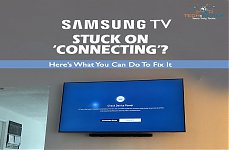
Samsung TV not connecting to WiFi? Learn why it happens, try easy step-by-step fixes, and know what to do if nothing works. Fix & get back to streaming fast.
Rangefinder Digital Cameras: Benefits and Limitations

Discover what a rangefinder in digital camera is, how its focusing works, its advantages and limitations, and why photographers love it for street photography.
Why Phone Storage Gets Full Even If You Barely Install Anything
Discover why your phone storage fills up without installing apps. Learn how cached files, photos, hidden downloads, and system data consume space.
Top 5 Entry-Level DSLR Camera Picks to Buy in 2026

Looking for a great beginner camera? Discover the top 5 entry-level DSLR cameras to buy in 2026, featuring the best budget, travel, and video choices.
Best LED Black Friday TV Deals: Your TV Shopping Guide
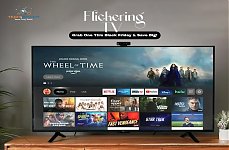
Discover the best LED Black Friday TV deals for 2026: when sales start, how much you can save on LED, QLED, and OLED TVs, plus tips to spot fake discounts.
Portable Bluetooth Speaker: Best Picks for Your Travel Bag
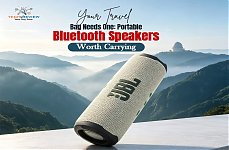
Looking for a portable Bluetooth speaker for travel? Check out 5 easy-to-carry options with different sound, battery, and durability features.