
How to Download Netflix Series as MP4 on a Laptop
Are you planning a long flight or weekend trip without reliable internet? Downloading your favorite Netflix series in advance seems like the great solution. However, if you're using a Windows laptop or MacBook, you will find that the Netflix download button is nowhere to be found.
Netflix removed offline downloading from its Windows app in 2024, while Mac computers don't have an official Netflix download app. Fortunately, there are alternative ways to prepare your favorite shows for offline viewing. Let's explore what works and how to get started.
Can You Download Netflix Series on a Laptop?
Netflix officially supports downloads only on compatible Android devices, iPhones, iPads, Fire tablets, and Chromebooks with Google Play Store access.
For regular Windows laptops and MacBooks, the situation is different. You can stream Netflix through a browser or the Windows app, but they don’t provide an official download feature.
Some users try Android equipment or screen recording software as alternatives. However, emulators may encounter compatibility problems, while screen recording requires playing every episode in real time and can produce black screens when protected content is involved.
If you want to prepare several episodes before traveling, a dedicated desktop downloader may offer a better experience.
How to Download Netflix Series on Windows or Mac
One option is Keeprix Netflix Downloader, a desktop APP designed to save supported Netflix movies and episodes as local MP4 or MKV files.
Keeprix works on Windows 10 or later and macOS 12 or later. It supports batch downloading, available audio tracks and subtitles, and Netflix video quality up to 1080p, depending on the source.
Here's how to use it.
Step 1: Install Keeprix
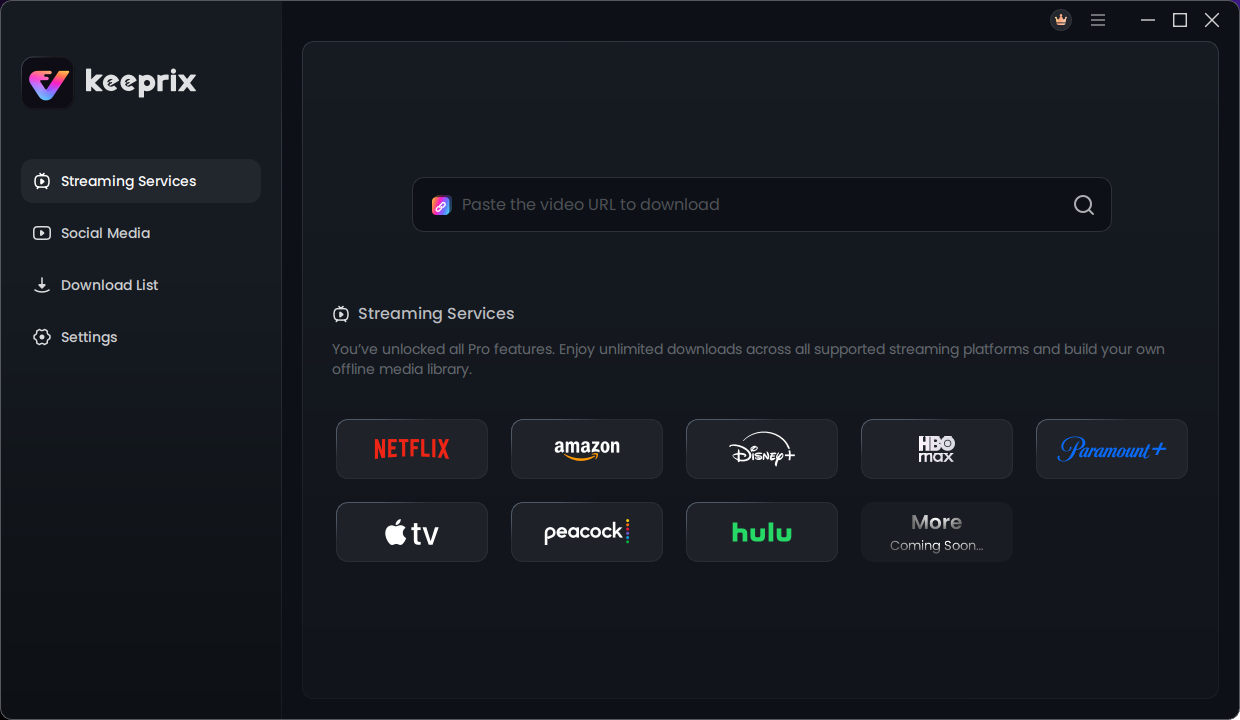
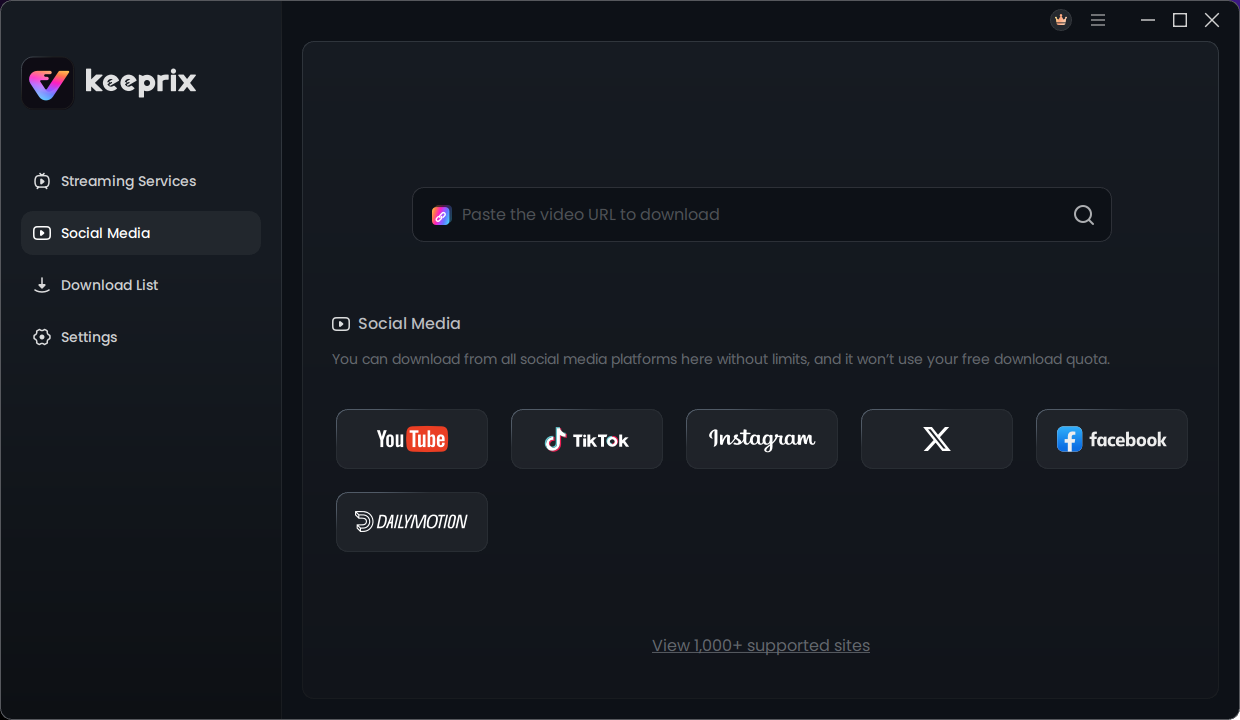
Download the appropriate version for your laptop and complete the installation. Open the application and choose Netflix from the supported platforms.
Step 2: Sign In to Netflix
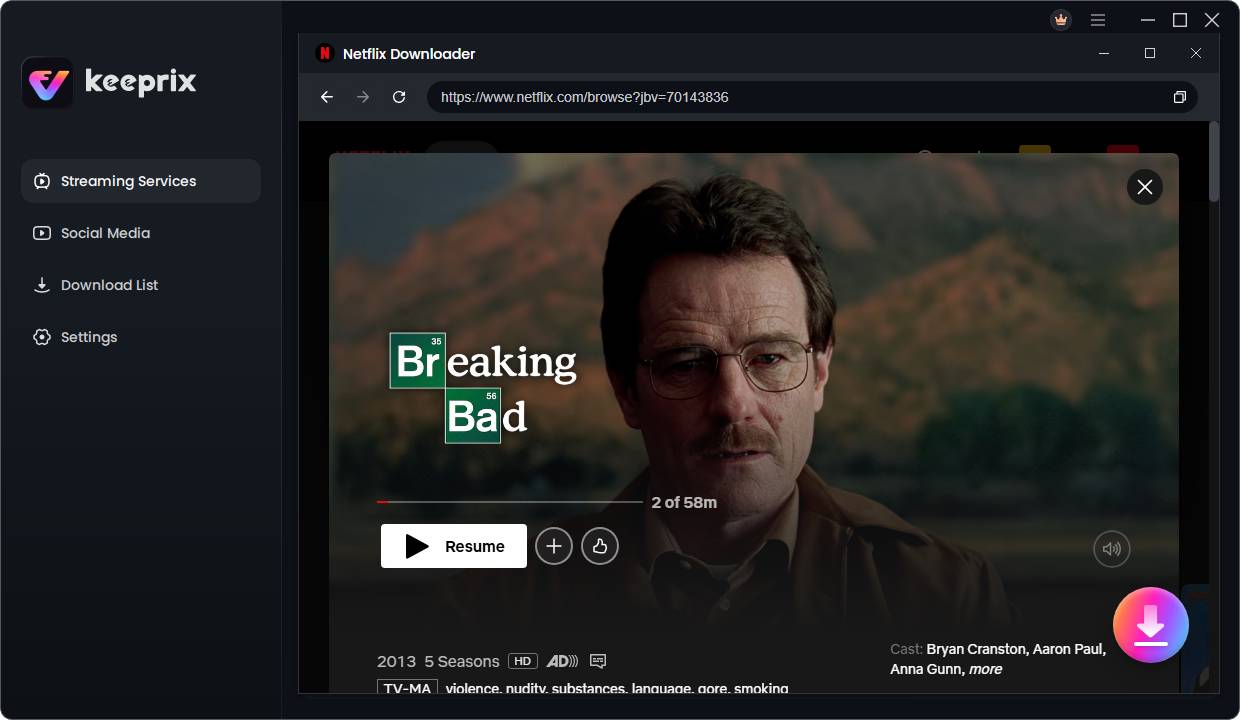
Use the built-in browser to sign in with your own Netflix account. You'll need a valid subscription and legitimate access to the content you want to download.
Find the TV series or episode you'd like to prepare for offline viewing.
Step 3: Choose Episodes and Download Settings
Select the available episodes you want to save. You can also add multiple episodes to the download queue when supported.
Choose MP4 or MKV, select from the available resolution options, and adjust your preferred audio and subtitle settings. Video quality varies depending on the title and source availability.
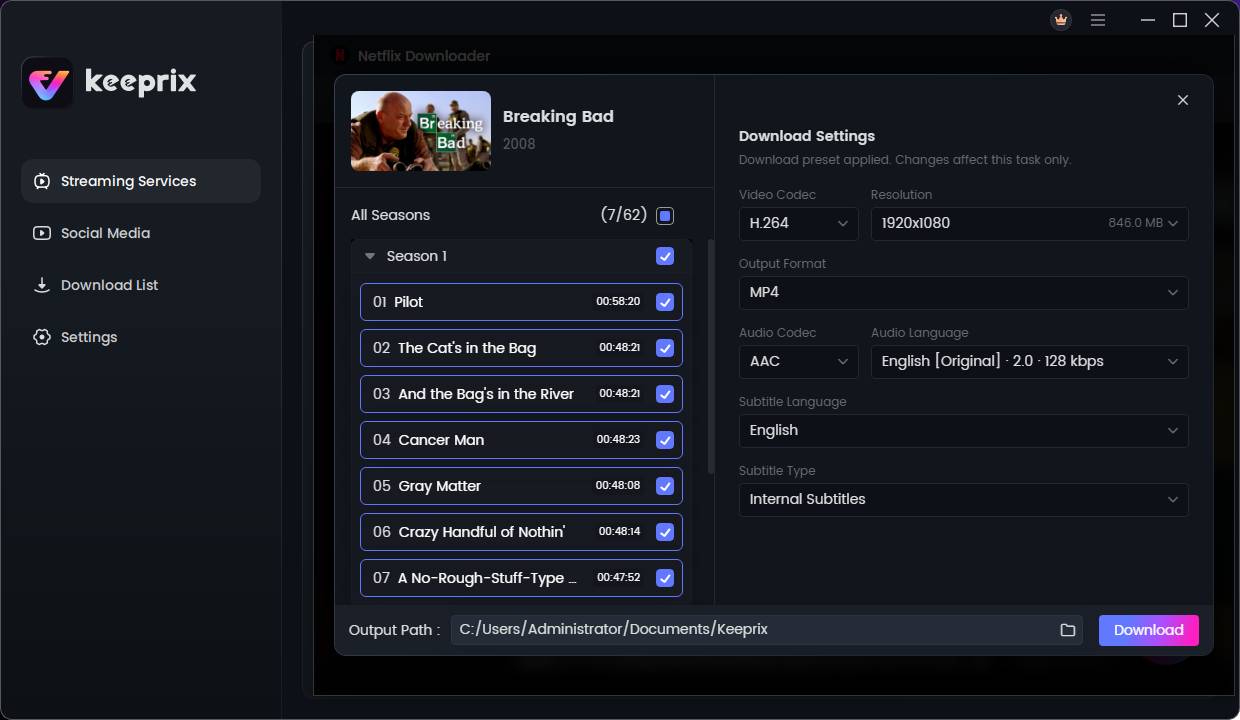
Step 4: Download and Watch Offline
Start downloading and allow the selected episodes to save to your laptop.
Once completed, locate the output folder and open the files using a compatible media player.
For readers interested in file formats, this guide explains how to download Netflix videos as MP4.
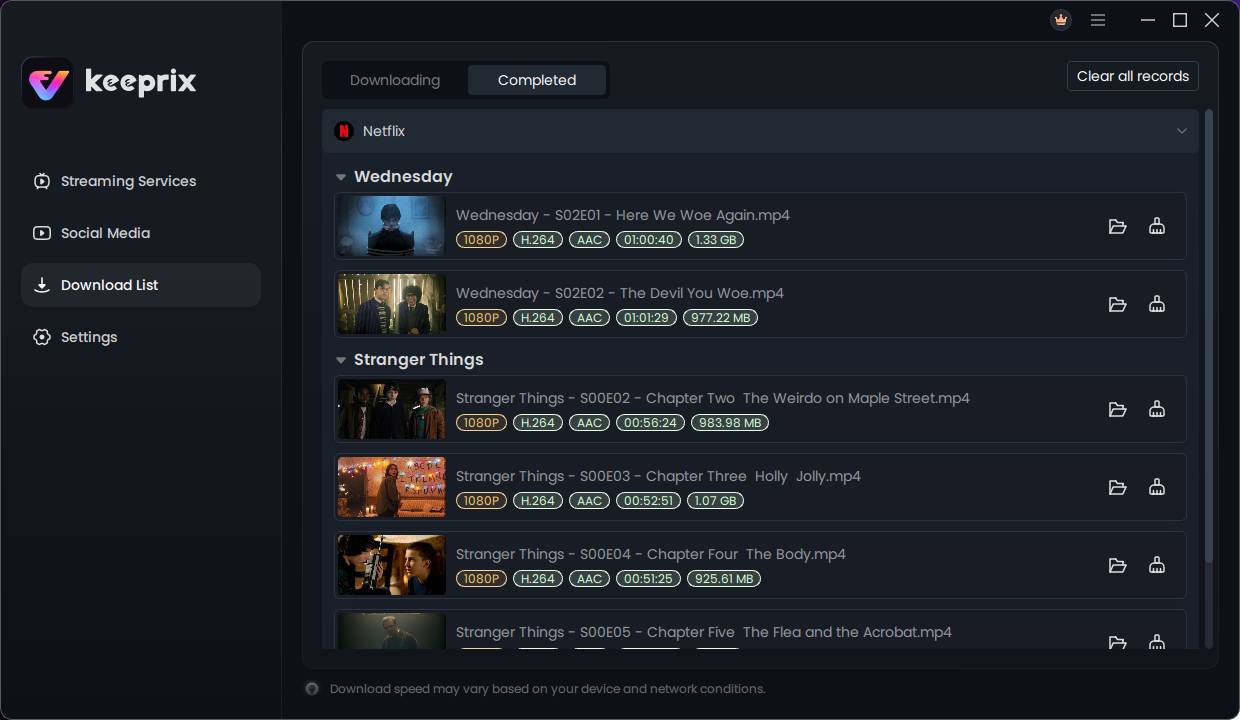
Why Save Netflix Episodes as Local Files?
Having episodes stored locally can make entertainment easier to manage, particularly when traveling.
Watch without continuous internet access. Download supported episodes before boarding a flight, taking a train, or visiting an area with unreliable Wi-Fi.
Organize your personal media library. Arrange files into folders by series and season in one App and build your own media library.
Use compatible media players. Standard MP4 and MKV files provide more playback options, although compatibility depends on the receiving device and its supported codecs.
Prepare multiple episodes together. Batch downloading helps reduce repetitive steps when organizing a season for offline viewing.
These benefits make local files appealing to viewers who prefer keeping their travel entertainment organized on a laptop.
Final Thoughts
Downloading Netflix series on a Windows laptop or MacBook isn't supported through Netflix's official desktop application. While mobile downloads are avilable, they don't solve every laptop-based travel scenario.
For users who want to organize supported episodes as local files, Keeprix offers a better option with MP4/MKV output, batch downloads, and selectable audio and subtitles.
Before your next trip, check title availability, test your preferred playback setup, and prepare your offline watchlist while you still have a reliable connection.
About author
How to Download Netflix Series as MP4 on a Laptop

Are you planning a long flight or weekend trip without reliable internet? Downloading your favorite Netflix series in advance seems like the great solution.
From Cards to Screens: The Evolution of Digital Games

Card games and board games used to come with a fair bit of setup. You needed the cards, pieces or board in front of you, and in many cases someone else had to be there too.
RTX 5060 vs RTX 4060: Is the Newer GPU Worth Your Money?

RTX 5060 vs RTX 4060: Compare gaming performance, FPS, GDDR7 vs GDDR6, DLSS features, power consumption, and prices to choose the right GPU in 2026.
How I Reclaimed Crucial SSD Space Without Deleting Essential Data Using Advanced SystemCare 20
I did not want to drag folders to the Recycle Bin and hope for the best. I wanted to free up room without losing documents, photos or settings. That is how I ended up testing Advanced SystemCare 20, a free Windows cleaner from IObit.
Samsung TV Not Connecting to WiFi? Get the Easy Fixes Here

Samsung TV not connecting to WiFi? Learn why it happens, try easy step-by-step fixes, and know what to do if nothing works. Fix & get back to streaming fast.
Rangefinder Digital Cameras: Benefits and Limitations

Discover what a rangefinder in digital camera is, how its focusing works, its advantages and limitations, and why photographers love it for street photography.