
How I Reclaimed Crucial SSD Space Without Deleting Essential Data Using Advanced SystemCare 20
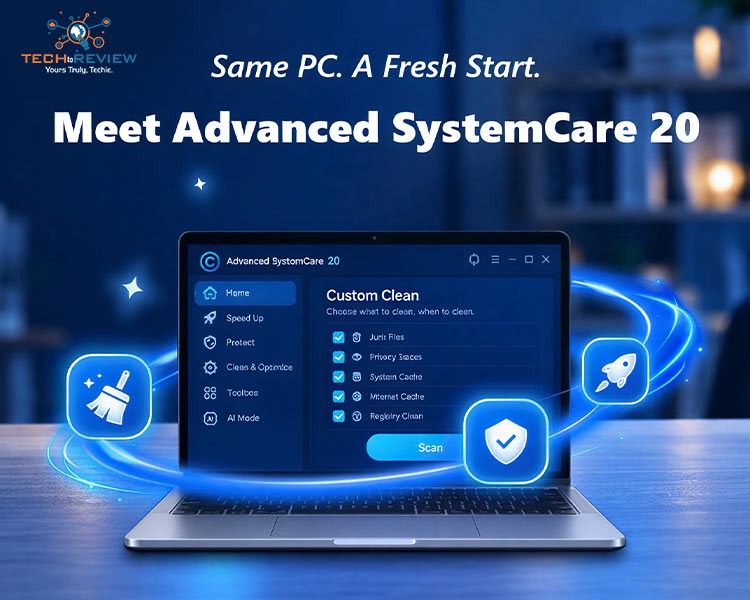
A few weeks ago, my laptop warned me that the C drive was almost full. My SSD is fast but small, and every gigabyte counts when Windows updates, browser caches and project files compete for space. I did not want to drag folders to the Recycle Bin and hope for the best. I wanted to free up room without losing documents, photos or settings. That is how I ended up testing Advanced SystemCare 20, a free Windows cleaner from IObit.
Why My SSD Filled Up So Quietly?
SSD space disappears gradually. Temporary files, browser caches, installer leftovers, duplicate downloads and old large files pile up over months. Manual cleanup is risky because it is easy to remove something that looks useless but is not. My rule for this test was simple: remove only what the software can clearly classify as junk, and review everything else first.
Starting From The Main Dashboard
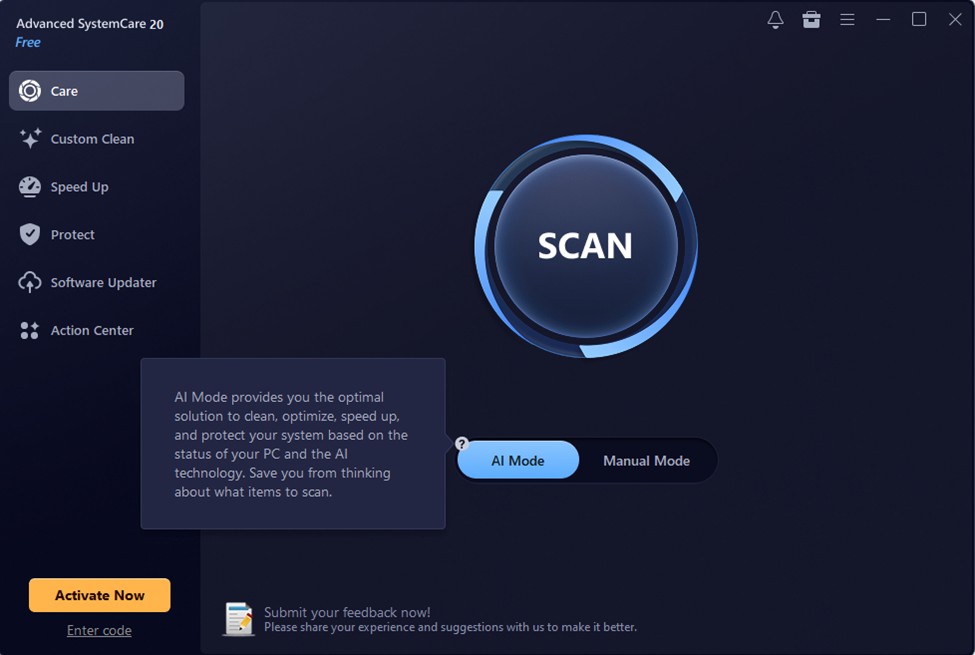
After installing the free edition, I opened the main screen. A sidebar holds Care, Custom Clean, Speed Up, Protect, Software Updater and Action Center, with a large Scan button in the middle and a switch between AI Mode and Manual Mode below it. The Advanced SystemCare 20 dashboard with the Scan button and mode switch. Every cleaning step I describe here ran in the free version.
Letting AI Mode do the first pass
I began with Advanced SystemCare’s AI Mode for a baseline. The AI Mode tooltip explains how the scan is chosen. A small question mark beside the switch explains that it chooses what to scan based on the condition of my PC.
The scan ran 16 checks, including privacy traces, junk files, registry entries and disk optimizations. The summary then offered to fix 557 items: 178 files worth 201.7 MB, 374 items to optimize and 5 security items. I reviewed the ticked categories before clicking Fix.
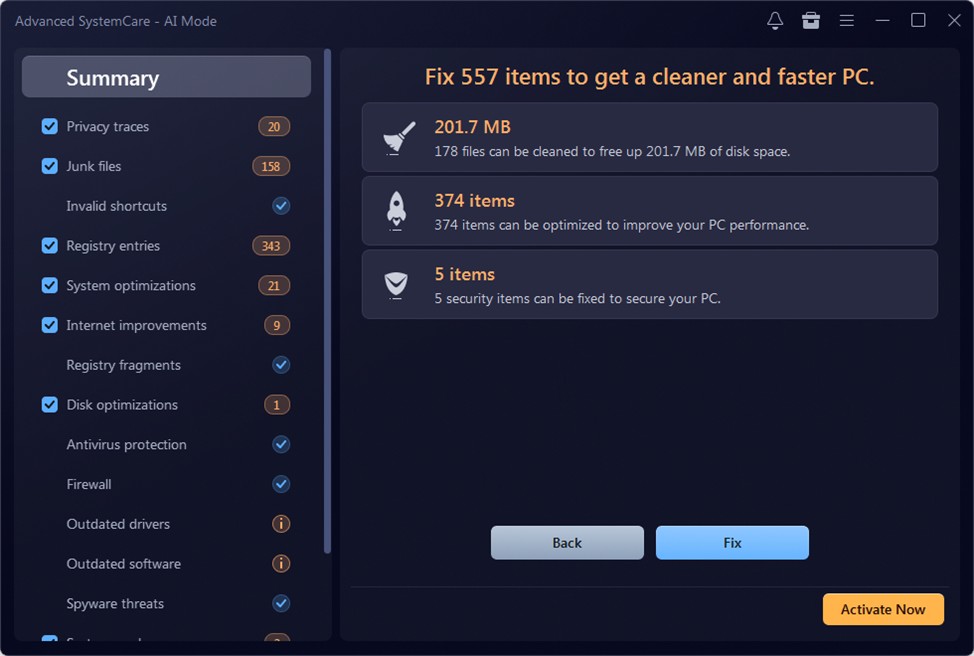
AI Mode scan results before any fix is applied.
The final screen reported 201.3 MB cleaned, 374 items optimized and 5 items fixed. I will be honest: 201 MB is not dramatic on a modern SSD. Still, it was a safe first pass, and nothing I use daily went missing. AI Mode finished with 201.3 MB cleaned.
Using Manual Mode when I wanted control
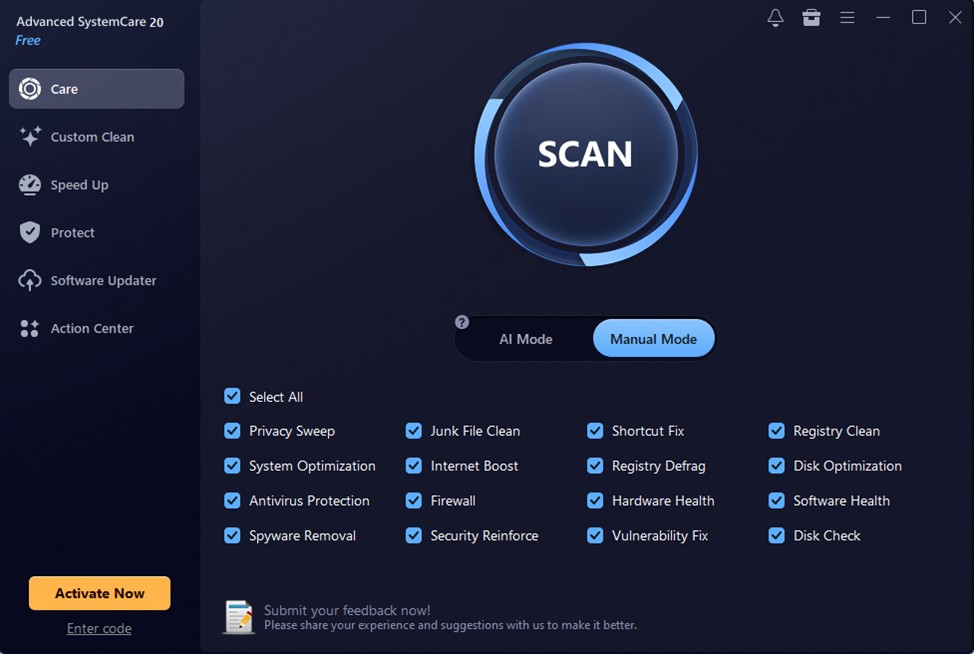
Next I tried Manual Mode. Manual Mode lets me choose each scan item.
It lists 16 checkboxes, such as Privacy Sweep, Junk File Clean and Disk Optimization, so I can untick anything I want left alone. With the defaults it returned the same 557 item summary. If you are cautious, it is the better habit because you decide the scope.
Custom Clean is Where The Real Space Came From
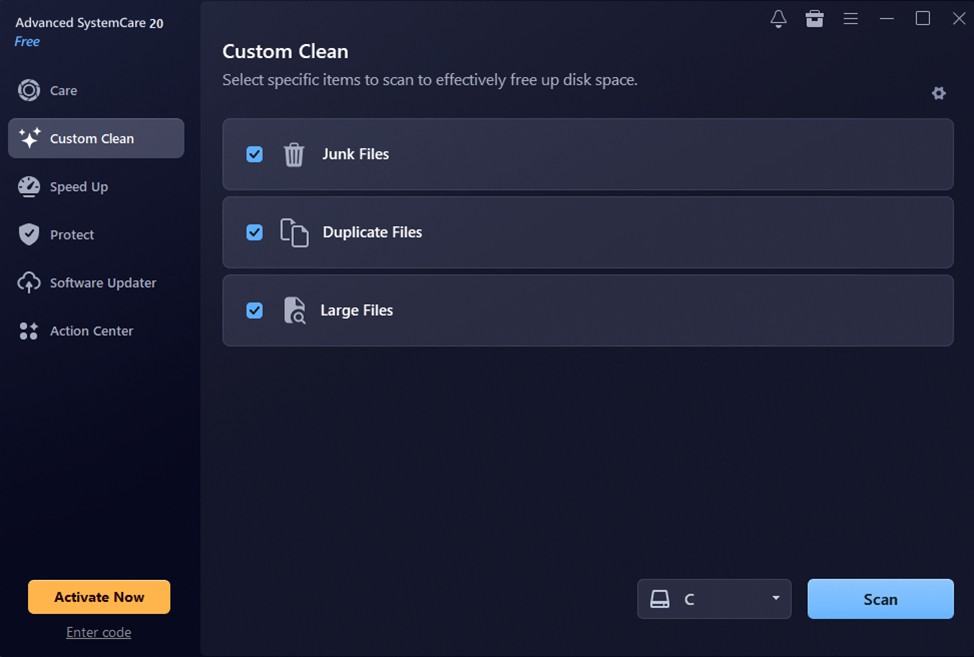
The biggest gains came from Custom Clean. It offers three targeted scans: Junk Files, Duplicate Files, and Large Files, and I can choose which drive to scan. I picked drive C and clicked Scan
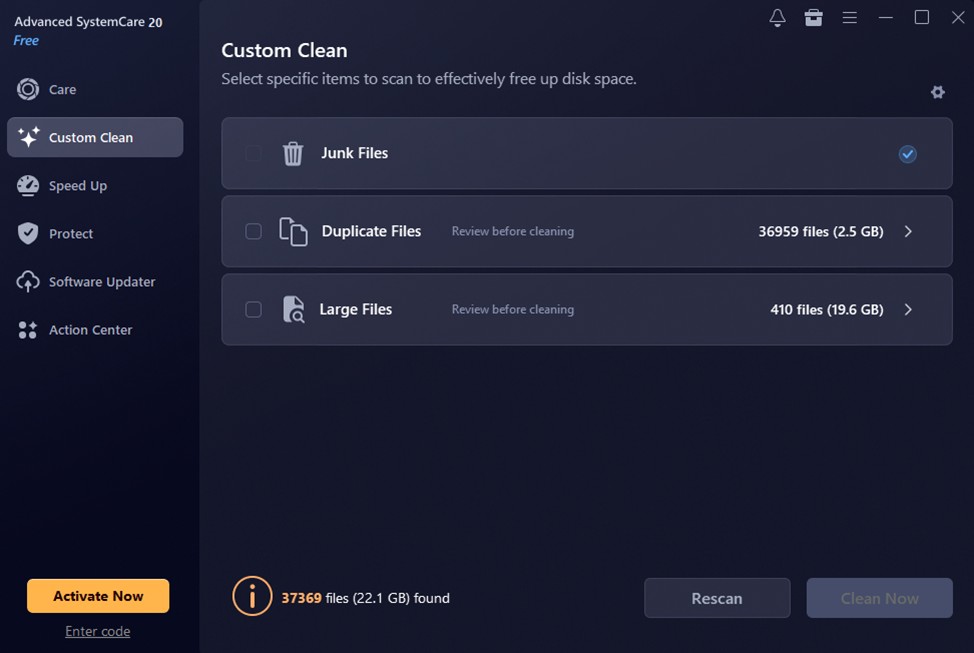
When the scan finished, it had found 37,369 files totaling 22.1 GB. Junk Files were marked as ready. Duplicate Files (36,959 files, 2.5 GB) and Large Files (410 files, 19.6 GB) were labeled Review before cleaning, and neither was ticked by default. That design choice is what let me reclaim space without deleting essential data. The tool did not assume that a duplicate or a big file was disposable.
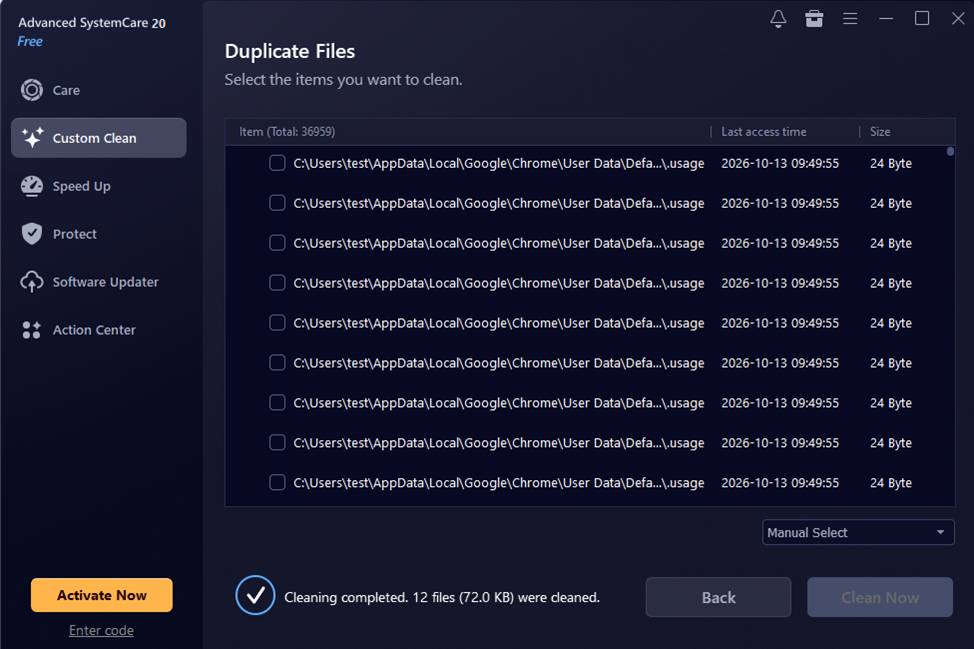
In the duplicate list, many entries were tiny 24 byte files inside Chrome's profile folder. Deleting browser internals to save a few bytes is a poor trade, so I used Manual Select and cleaned only a small group, 12 files and 72.0 KB. For large files, I would sort by size, move anything worth keeping to an external drive and delete only what I can clearly identify, such as old installers. Most of the 19.6 GB can be recovered there, and no tool should make that decision for me.
Keeping the Space Free With Speed Up and Software Updater
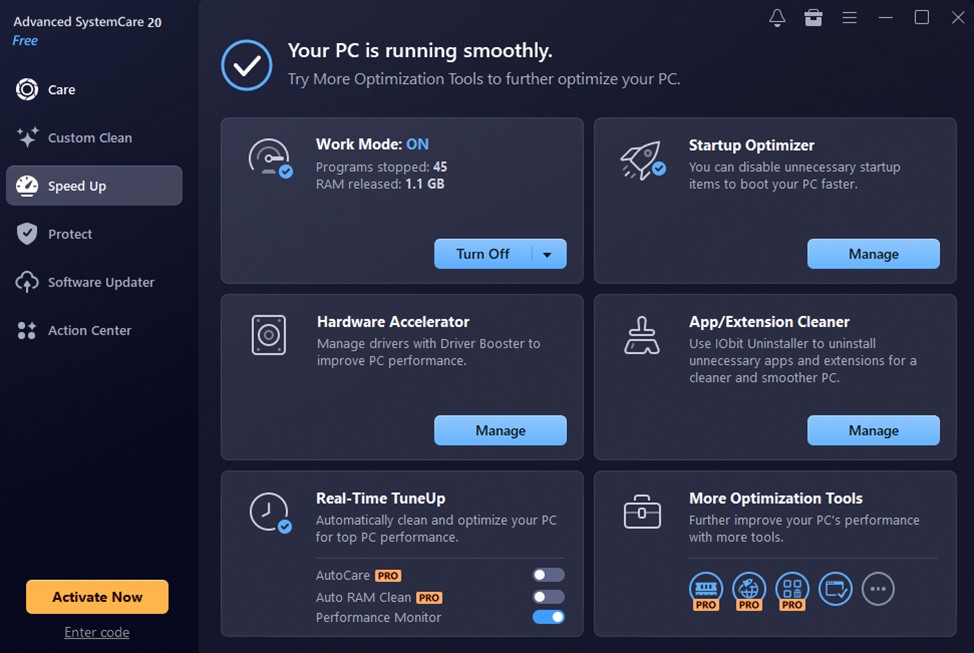
Reclaiming space is only half the job. In Speed Up, I turned on Work Mode, which showed 45 programs stopped and 1.1 GB of RAM released, and the Startup Optimizer lets me disable items I do not need. These help responsiveness rather than disk space. Automation such as AutoCare is marked Pro.
Software Updater flagged one outdated program, Google Chrome, on version 154.0.8037.98 with 155.0.8059.40 available. Updating keeps the browser secure, and the single Update button worked, though Update All is Pro.
Extra tools worth knowing about
The toolbox lists many utilities. The most relevant to storage were Duplicate File Finder, Large File Finder, Empty Folder Scanner and File Shredder, while Disk Cleaner carries a Pro label. As a free PC cleaner, the suite covers most storage problems.
What I Learned and What I Would Advise
- Start with the automated scan, then use Custom Clean for bigger wins.
- Never bulk delete duplicates or large files. Read the paths first.
- Move files I want to keep to external or cloud storage.
- Rescan monthly so clutter does not return.
The safest part of Advanced SystemCare 20 is how it separates obvious junk from items that need a human decision. If your SSD is nearly full and you fear losing files, that balance is what you want.
About author
How I Reclaimed Crucial SSD Space Without Deleting Essential Data Using Advanced SystemCare 20

I did not want to drag folders to the Recycle Bin and hope for the best. I wanted to free up room without losing documents, photos or settings. That is how I ended up testing Advanced SystemCare 20, a free Windows cleaner from IObit.
Samsung TV Not Connecting to WiFi? Get the Easy Fixes Here
Samsung TV not connecting to WiFi? Learn why it happens, try easy step-by-step fixes, and know what to do if nothing works. Fix & get back to streaming fast.
Rangefinder Digital Cameras: Benefits and Limitations

Discover what a rangefinder in digital camera is, how its focusing works, its advantages and limitations, and why photographers love it for street photography.
Why Phone Storage Gets Full Even If You Barely Install Anything

Discover why your phone storage fills up without installing apps. Learn how cached files, photos, hidden downloads, and system data consume space.
Top 5 Entry-Level DSLR Camera Picks to Buy in 2026

Looking for a great beginner camera? Discover the top 5 entry-level DSLR cameras to buy in 2026, featuring the best budget, travel, and video choices.
Best LED Black Friday TV Deals: Your TV Shopping Guide
Discover the best LED Black Friday TV deals for 2026: when sales start, how much you can save on LED, QLED, and OLED TVs, plus tips to spot fake discounts.