
Best Ways To Do Android To Android Screen Share
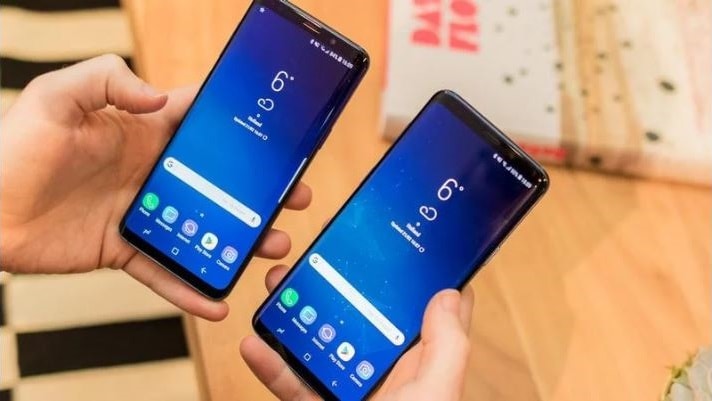
There are so many situations where you want to show something to your friends on your Android smartphone’s screen without sharing any data with them. Well, it’s very easy to mirror Android interface to a PC or Mac; however, it is not that much easy to do android to android screen share. You can share screen on multiple Android devices with so many apps, but ScreenMeet is the best among them.
Steps to use ScreenMeet app
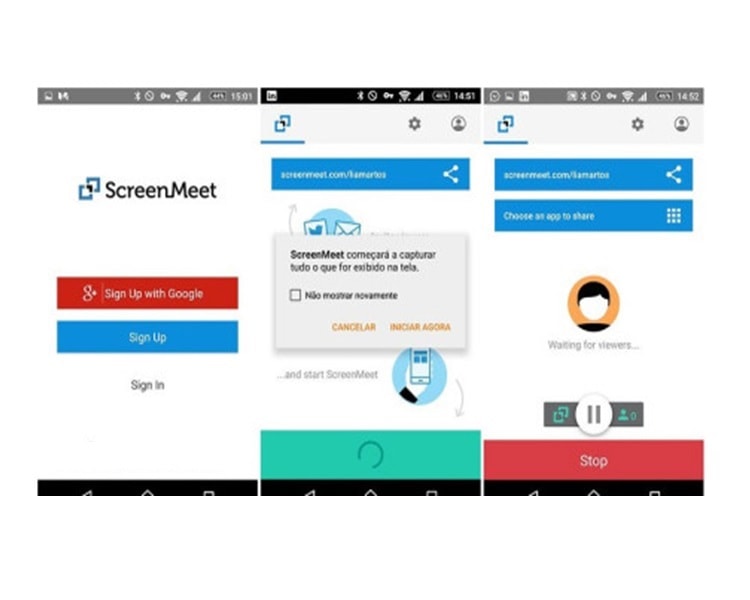
1. Downloading ScreenMeet on that Android device, whose screen you want to share with others, is the first step. It is very interesting to know that you don’t need to install this app on other Android devices that will get your device’s mirrored screen.
2. Now it’s time to sign up in the app and after completing this step you will get a prompt on the screen. It will tell you that you get only 10 free meetings with this app. After that, you will have to purchase a subscription.
.jpg)
3. To let other Android users view your Android screen you need to tap on ‘Start’ button at the bottom. Now confirm your action by selecting ‘Start Now’.
4. When the process starts, you can go to the ‘ScreenMeet link’ on your other Android device. Now you can see your Android screen in action there. After that, you can showcase whatever you want by moving over to other apps.
5. Once screen sharing begins, you can pause or stop the screen sharing from the notification shade. With the help of a floating button, available on all screens, you can jump back to the ScreenMeet app.
Overall you can say this app is the best screen share app to share one screen with various Android devices. However, internet connectivity plays very crucial role in it. On the other hand, you can go to ScreenMeet’s setting and use the slider between quality and speed to improve the shared screen. To change the shareable link you can change it from the settings page. For that, you need to set a lock for that particular link. When a viewer tries to join your share screen Room it will ask for a name.
You not only share your Android screen to other Android devices with this app, but you can also share your screen with any device which comes with a browser. It implies that you can share your Android screen with a Mac, Windows PC, iPhone and many more. This app is limited to 10 meetings and 50 viewers in its free trial though. To enjoy this app for unlimited usage you need to buy its subscription for $15/month. In addition to this, you can also buy ‘All You Can Meet’ day pass in $1.99.
Read More Article: Best Paid Android Apps
About author

Samsung TV Not Connecting to WiFi? Get the Easy Fixes Here
Samsung TV not connecting to WiFi? Learn why it happens, try easy step-by-step fixes, and know what to do if nothing works. Fix & get back to streaming fast.
Rangefinder Digital Cameras: Benefits and Limitations

Discover what a rangefinder in digital camera is, how its focusing works, its advantages and limitations, and why photographers love it for street photography.
Why Phone Storage Gets Full Even If You Barely Install Anything

Discover why your phone storage fills up without installing apps. Learn how cached files, photos, hidden downloads, and system data consume space.
Top 5 Entry-Level DSLR Camera Picks to Buy in 2026

Looking for a great beginner camera? Discover the top 5 entry-level DSLR cameras to buy in 2026, featuring the best budget, travel, and video choices.
Best LED Black Friday TV Deals: Your TV Shopping Guide
Discover the best LED Black Friday TV deals for 2026: when sales start, how much you can save on LED, QLED, and OLED TVs, plus tips to spot fake discounts.
Portable Bluetooth Speaker: Best Picks for Your Travel Bag

Looking for a portable Bluetooth speaker for travel? Check out 5 easy-to-carry options with different sound, battery, and durability features.