
7 Quick Tactics To Make Your Windows 10 Work Properly
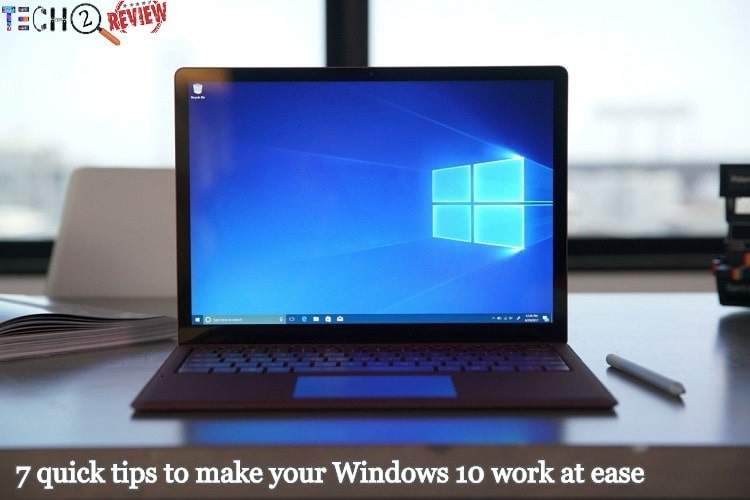
No matter how agile you are, adjusting configuration settings in windows 10 can get very complicated sometimes. Whether it is about better performance or adjusting configuration settings to personalize the desktop, plenty of ways are there to consider. If you want to be quick about it and looking for the simple and uncomplicated ways then here are 7 tips for windows 10.
1. Maximise the CPU performance
If a desktop PC or a notebook is your partner then you need to enhance your CPU performance. All you need to do is Right-click the start button in the lower corner of your screen or press Windows + X and navigate to the power option menu item. Now click on the high performance radio button.
2. Switch from bing
You would be asked to use Bing as your search engine but you can force Cortana to use different search engines, and for this you need to change the settings. If firefox is your default browser in Windows 10, the cortona should be using this search bar.
3. Limit cortona’s reach
If you want to make your windows 10 work properly then limit the parameter of Cortona search itself. For instance- you can stop the search from the internet at all. For this, click on the Cortona in the taskbar and switch off the setting, namely “Search Online And Include Web Results”.
4. Create a custom shortcut folder
Creating a custom start menu folder will be a good trick to use the Windows 10 at ease.You can create an app containing shortcuts to any app, documents or else that you need to include. Alongside, you can then pin that folder to the start screen or the taskbar for more feasibility.
5. Remove Old Windows
You probably have the folder containing the old version if you have upgraded the new version with Windows 7 or 8. For sure, you’ll never go back to the old versions, then what is the use of keeping them and consuming space that can be used somewhere else.
6. Add more space to send files
If you’re working in file explorer and you click right a file and navigate to the Send to menu item, you'll be able to see a small list of suggested places where you can send the files. On clicking Shift+Right that file instead and then navigate to the send to menu item, you will be available with a more extensive list of places where you can send that file.
7. Change the settings where the app is installed
Last but not the least, most computers are coming with the combination of SSD and large capacity mechanical data drives. It is quite a great option but it requires more management. Change the settings by clicking on the Start button and navigate to All Apps/setting systems/Storage.
This was our try, hopefully these 7 tips and tricks to make your Windows 10 work will also help you. Try these tips and tricks and perform with your Windows 10 at ease.
About author

Samsung TV Not Connecting to WiFi? Get the Easy Fixes Here
Samsung TV not connecting to WiFi? Learn why it happens, try easy step-by-step fixes, and know what to do if nothing works. Fix & get back to streaming fast.
Rangefinder Digital Cameras: Benefits and Limitations

Discover what a rangefinder in digital camera is, how its focusing works, its advantages and limitations, and why photographers love it for street photography.
Why Phone Storage Gets Full Even If You Barely Install Anything

Discover why your phone storage fills up without installing apps. Learn how cached files, photos, hidden downloads, and system data consume space.
Top 5 Entry-Level DSLR Camera Picks to Buy in 2026

Looking for a great beginner camera? Discover the top 5 entry-level DSLR cameras to buy in 2026, featuring the best budget, travel, and video choices.
Best LED Black Friday TV Deals: Your TV Shopping Guide

Discover the best LED Black Friday TV deals for 2026: when sales start, how much you can save on LED, QLED, and OLED TVs, plus tips to spot fake discounts.
Portable Bluetooth Speaker: Best Picks for Your Travel Bag

Looking for a portable Bluetooth speaker for travel? Check out 5 easy-to-carry options with different sound, battery, and durability features.