
How To Transfer Files Between Android And Mac
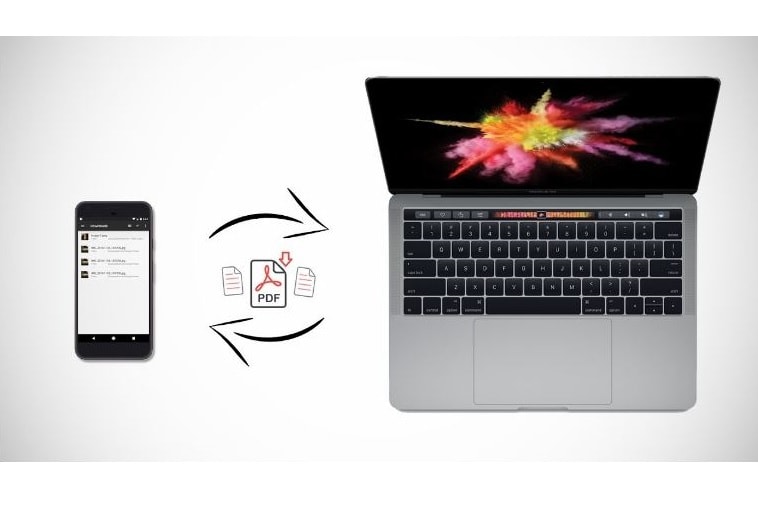
If you have an Android device and a Mac, then you can easily notice that you cannot use it the same as you use your Android device with Windows PC. But, there are still many good solutions through which you can easily Android File Transfer For Mac.
The fastest and the most reliable option available for the Transfer Android Files To Mac is to use a USB cable. With the help of a USB cable, Mac will consider Android device as an external disk, through which you can explore folders with finder. Still, the connection between Android and Mac depends on the operating system of both devices.
Some of the ways through which transfer of files can take place between Android and Mac are stated below;
1. AirDroid:
AirDroid basically allows the user to access and manage their Android device or tablet through Mac, Windows or the web for free. Along with this, this app lets you do a host of other things, like take screenshots, check your messages, and more. You can also enable the option of notification sharing, through which you can easily mirror phone’s notification to your laptop in real time.
AirDroid app also lets the user to install APKs from their computer the Android device which is much easier than to transfer the APK. This app comes with a lot of various features, although some of these features are only available for the premium users only. AirDroid is basically for those users who are looking for file management.
To Transfer Android Files To Mac with the help of AirDroid, you must follow the given steps:
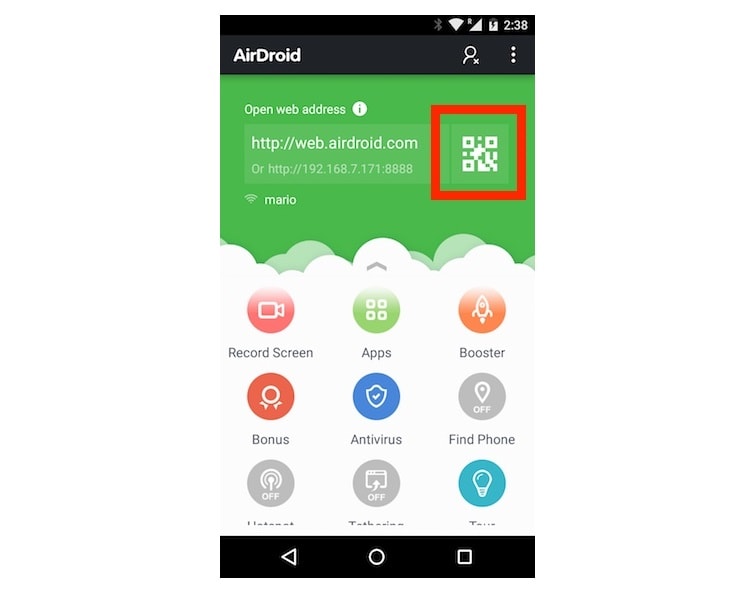
(i) Install the AirDroid app on your Android device. Go to Android web client on your Mac and then tap on the QR code icon, appeared after installing this app on your Android device.
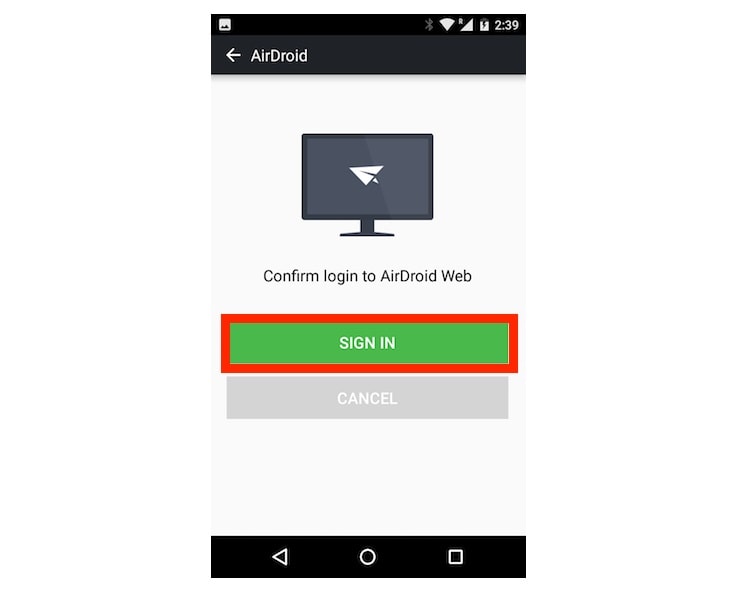
(ii) Once your device accepts the QR code, then you can easily sign in by on your Android device by just tapping on ‘Sign In’ option.

(iii) In the Android web client, you can easily access the files stored on your Android device by simply clicking on the ‘Files’ option.
2. Handshaker:
This Handshaker app is a very amazing app as it allows you to connect your Mac with your Android device along with easy transfer of files. You will have to install this app on both Android as well as on Android, to easily transfer files between the two devices. The file transfer through this app is very fast as it offers great interference. According to the reports, a user tried to transfer a video file of 1.12 GB from Mac to an Android device and the resulting speed varies between 8 to 8.3 Mbps.
To transfer files between Android and Mac you can use this Handshaker app and follow the following steps;

(i) You should first install this Handshaker app on your Mac device, and then to transfer files connect your Android device to your Mac with the help of a USB cable.
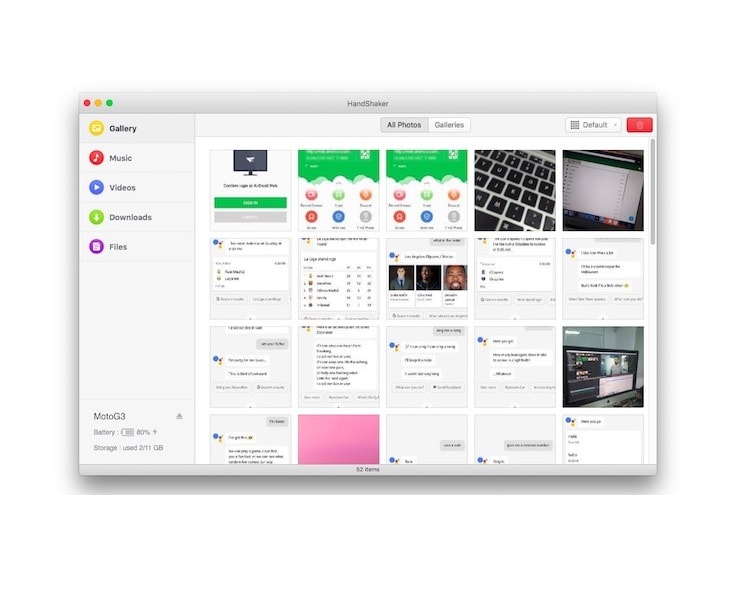
(ii) Once you have installed this app on your Android app, then you just simply reconnect your device with the Mac. Through this, you can easily transfer files and photos between your Android device and your Mac.
3. FTP:
Another way to transfer files and photos between Android and Mac is known as FTP or File Transfer Protocol. This is a very simple way to connect your Android device with your Mac, as you can simply create an FTP server on your Mac and then transfer files between the two devices.
To Android File Transfer For Mac with the help of FTP, you must follow the following steps;
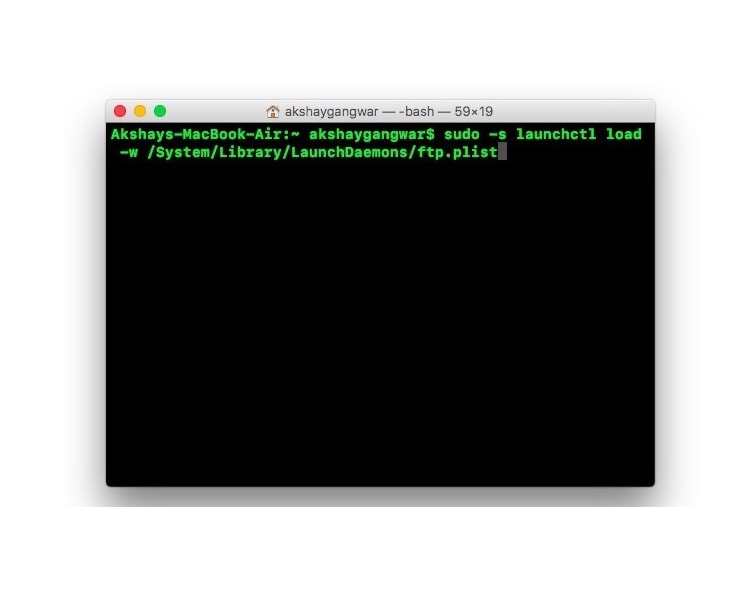
(i) The user must launch the terminal on their phone. To create an FTP server, they must type, “sudo -s launchctl load -w /System/Library/LaunchDaemons/ftp.plist”.

(ii) Go to the file explorer on your Android device, and then tap on the hamburger icon. After that select “FTP” under the ‘Network’ section.
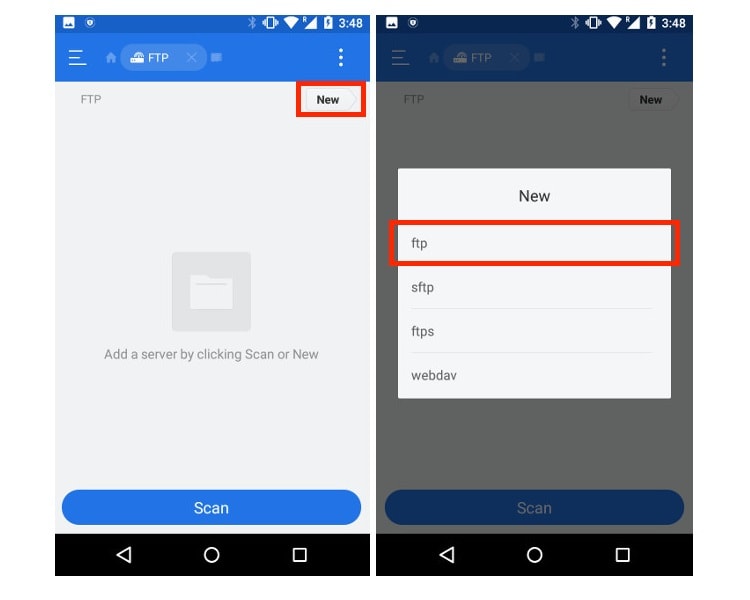
(iii) Tap ‘New’, which is present on the top right corner and then tap “FTP”.

(iv) Fill up the details including the IP address, username, and password, for your FTP server.
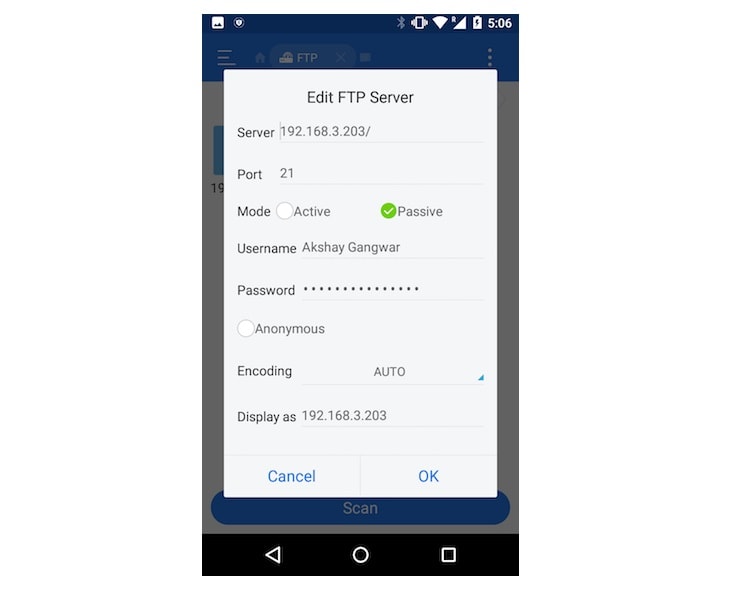
(v) Leave the rest of the entries and then tap ‘Ok’. Now, you can transfer files between your Android device and Mac.

Read More Article: Protect Android Device Against Malware
About author

Samsung TV Not Connecting to WiFi? Get the Easy Fixes Here
Samsung TV not connecting to WiFi? Learn why it happens, try easy step-by-step fixes, and know what to do if nothing works. Fix & get back to streaming fast.
Rangefinder Digital Cameras: Benefits and Limitations

Discover what a rangefinder in digital camera is, how its focusing works, its advantages and limitations, and why photographers love it for street photography.
Why Phone Storage Gets Full Even If You Barely Install Anything
Discover why your phone storage fills up without installing apps. Learn how cached files, photos, hidden downloads, and system data consume space.
Top 5 Entry-Level DSLR Camera Picks to Buy in 2026

Looking for a great beginner camera? Discover the top 5 entry-level DSLR cameras to buy in 2026, featuring the best budget, travel, and video choices.
Best LED Black Friday TV Deals: Your TV Shopping Guide

Discover the best LED Black Friday TV deals for 2026: when sales start, how much you can save on LED, QLED, and OLED TVs, plus tips to spot fake discounts.
Portable Bluetooth Speaker: Best Picks for Your Travel Bag

Looking for a portable Bluetooth speaker for travel? Check out 5 easy-to-carry options with different sound, battery, and durability features.