
How to Optimize Software for Custom PCs: Essential Tips
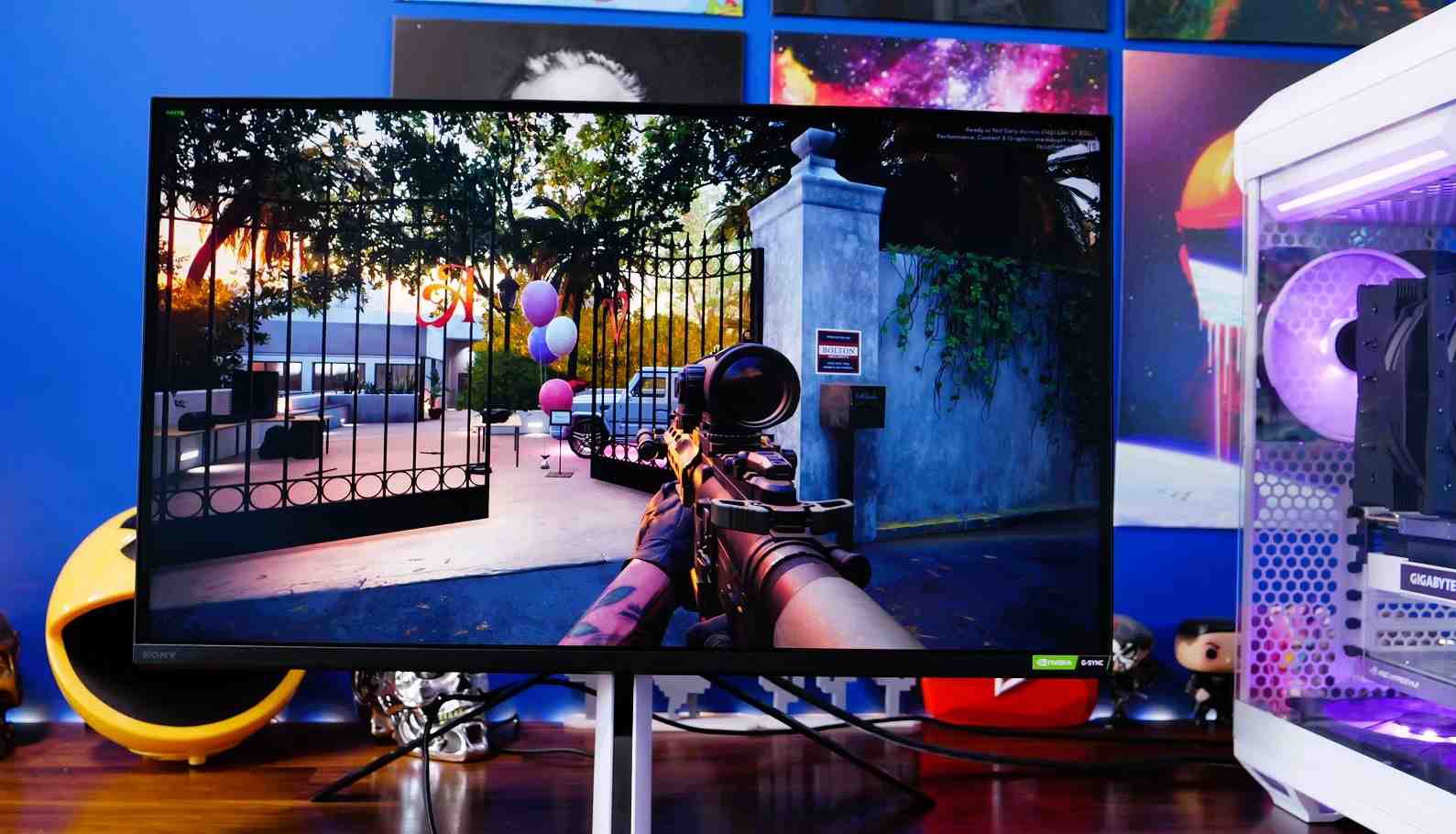
Building a custom PC is an exciting endeavor that allows enthusiasts to tailor their machines to their exact needs and preferences. However, optimizing the software for these custom builds is often overlooked but crucial for maximizing performance and efficiency. By following these essential tips, you can ensure that your custom PC operates at its full potential, providing you with a seamless computing experience tailored to your specifications. Remember, the software is the bridge between your hardware and your user experience, so optimizing it is key to unlocking the full potential of your custom-built system. With the right software optimizations, you can squeeze out every ounce of performance from your hardware, whether you're gaming, editing videos, or simply browsing the web.
Understanding Your Hardware Configuration
Before delving into software optimization for custom gaming PCs, it's imperative to have a comprehensive understanding of your hardware configuration. Take stock of your components and their specifications, including the CPU, GPU, RAM, and storage devices. This knowledge will help you make informed decisions when selecting and optimizing software. Additionally, consider factors such as power supply capacity and motherboard features, as they can also impact software optimization strategies. Understanding your hardware configuration not only aids in software optimization but also provides insights into potential upgrades and future-proofing your system. By comprehensively understanding your hardware, you can tailor your software optimizations to leverage the strengths of your components while mitigating any potential weaknesses.
Choose Suitable Software
Selecting software that is compatible with your custom PC's hardware is key to maximizing performance. Look for applications that are optimized for your CPU and GPU architecture, as well as those that leverage the capabilities of any specialized hardware you may have, such as high-speed storage or dedicated graphics cards. Furthermore, consider open-source software options, as they often provide flexibility and customization options that can enhance performance and efficiency. Choosing suitable software not only improves performance but also ensures compatibility and stability, reducing the risk of crashes and system errors. Additionally, consider the long-term support and update frequency of the software you choose, as ongoing development can lead to performance improvements and new features over time.
Maintain System Health
Regular maintenance is essential for keeping your custom PC running smoothly. Ensure that you install software updates and patches promptly to address security vulnerabilities and improve stability. Additionally, invest in a reliable antivirus program to protect your system from malware and other threats. Performing routine system scans and malware checks can help prevent performance degradation and potential security breaches. Remember, a healthy system is a high-performing system, so prioritize regular maintenance to keep your custom PC running smoothly. Implementing automated maintenance tasks, such as scheduled updates and scans, can streamline the process and ensure that your system remains secure and optimized with minimal effort.
Optimize Startup Programs
Startup programs can significantly impact your system's boot time and overall performance. Review the list of programs set to launch at startup and disable any unnecessary ones. Utilize tools like Task Manager or third-party software to manage startup items efficiently. Moreover, consider using a startup delay feature to stagger the launch of programs, reducing the strain on system resources during boot-up. Optimizing startup programs not only improves boot times but also frees up system resources for other tasks, enhancing overall performance and responsiveness. Additionally, consider the impact of background processes and services on startup performance and prioritize disabling or delaying those that are non-essential to your workflow.
Adjust Graphics Settings
Optimizing graphics settings is crucial for gamers and multimedia enthusiasts seeking the best performance and visual quality. Experiment with different settings to find the right balance between performance and visuals. Be cautious when overclocking or tweaking graphics settings to avoid damaging your hardware. Additionally, keep your graphics drivers up to date to ensure compatibility with the latest games and applications while also benefiting from performance optimizations and bug fixes. Fine-tuning graphics settings not only enhances visual fidelity but also ensures smooth and stutter-free gaming and multimedia experiences. Consider using built-in benchmarking tools or third-party utilities to assess the impact of graphics settings changes on performance and frame rates.
Manage Disk Usage
Effective management of disk usage can improve system responsiveness and overall performance. Regularly use disk cleanup tools to remove temporary files and other clutter from your storage devices. Consider defragmenting your drives to optimize file placement and reduce access times. Furthermore, consider upgrading to faster storage solutions such as solid-state drives (SSDs) for improved performance and reliability. Managing disk usage not only frees up valuable storage space but also improves system responsiveness and reduces loading times for applications and games. Additionally, consider using disk usage analysis tools to identify and remove large or redundant files that may be consuming unnecessary space on your drives.
Utilize System Tweaks and Enhancements
Fine-tuning system settings can unlock additional performance gains and improve overall efficiency. Explore options such as adjusting power settings, disabling unnecessary services, and optimizing memory usage. Take advantage of performance-enhancing utilities and customization options offered by your operating system and hardware. Additionally, consider installing third-party optimization tools that automate the process of tweaking system settings and managing resources for optimal performance. System tweaks and enhancements allow you to tailor your custom PC to your specific needs and preferences, maximizing performance and efficiency. Remember to document any changes you make and monitor their impact on system stability and performance over time.
Monitor Performance and Temperature
Monitoring your system's performance and temperature is essential for ensuring stability and longevity. Use monitoring tools to track CPU, GPU, and RAM usage, as well as temperatures and fan speeds. Address any overheating issues promptly by cleaning dust buildup and ensuring adequate cooling. Consider installing additional cooling solutions such as aftermarket CPU coolers or case fans to maintain optimal temperatures during intense gaming or productivity tasks. Monitoring performance and temperature not only helps prevent overheating and hardware failures but also allows you to identify performance bottlenecks and optimize system resources for maximum efficiency. Additionally, consider logging performance metrics over time to identify trends and potential issues before they impact system stability or performance.
Back-Up and Restore Procedures
Regularly backing up your data is crucial for safeguarding against data loss in the event of hardware failure or software issues. Invest in backup and recovery software to automate this process and ensure that your data is protected. Familiarize yourself with restoration procedures to quickly recover your system in case of emergencies. Additionally, consider creating a system image or clone of your drive for quick and easy restoration in the event of a catastrophic failure. Backing up and restoring procedures ensure that your valuable data is protected and can be quickly recovered in the event of unforeseen circumstances. Remember to test your backup and restoration processes regularly to ensure that they are working correctly and that you can rely on them when needed.
Seek Community Support and Resources
Building and optimizing a custom PC can be a daunting task, but you don't have to go it alone. Engage with online forums, communities, and social media groups where you can seek advice, share experiences, and troubleshoot issues with fellow enthusiasts. Take advantage of tutorials, guides, and online resources to expand your knowledge and skills in PC building and optimization. Furthermore, consider attending local meetups or workshops to connect with like-minded individuals and learn from their experiences firsthand. Community support and resources provide invaluable assistance and insights, helping you overcome challenges and achieve optimal performance with your custom PC. Remember, the community is a valuable source of knowledge and expertise, so don't hesitate to reach out for help or share your own experiences and insights with others.
Conclusion
Optimizing software for custom PCs is a critical step in maximizing performance and efficiency. By understanding your hardware configuration, choosing suitable software, and implementing best practices for system maintenance and optimization, you can ensure that your custom-built rig delivers the best possible performance for your needs. Remember to stay informed, stay connected with the community, and continue exploring new ways to optimize and enhance your PC experience. With dedication and attention to detail, you can unleash the full potential of your custom PC and enjoy a seamless computing experience tailored to your preferences.
Pat Baker is a computer novice, who enjoys hands-on projects, and writes for custom gaming PC companies.
How I Reclaimed Crucial SSD Space Without Deleting Essential Data Using Advanced SystemCare 20
I did not want to drag folders to the Recycle Bin and hope for the best. I wanted to free up room without losing documents, photos or settings. That is how I ended up testing Advanced SystemCare 20, a free Windows cleaner from IObit.
Samsung TV Not Connecting to WiFi? Get the Easy Fixes Here

Samsung TV not connecting to WiFi? Learn why it happens, try easy step-by-step fixes, and know what to do if nothing works. Fix & get back to streaming fast.
Rangefinder Digital Cameras: Benefits and Limitations

Discover what a rangefinder in digital camera is, how its focusing works, its advantages and limitations, and why photographers love it for street photography.
Why Phone Storage Gets Full Even If You Barely Install Anything

Discover why your phone storage fills up without installing apps. Learn how cached files, photos, hidden downloads, and system data consume space.
Top 5 Entry-Level DSLR Camera Picks to Buy in 2026

Looking for a great beginner camera? Discover the top 5 entry-level DSLR cameras to buy in 2026, featuring the best budget, travel, and video choices.
Best LED Black Friday TV Deals: Your TV Shopping Guide

Discover the best LED Black Friday TV deals for 2026: when sales start, how much you can save on LED, QLED, and OLED TVs, plus tips to spot fake discounts.