
How to identify fonts in an image
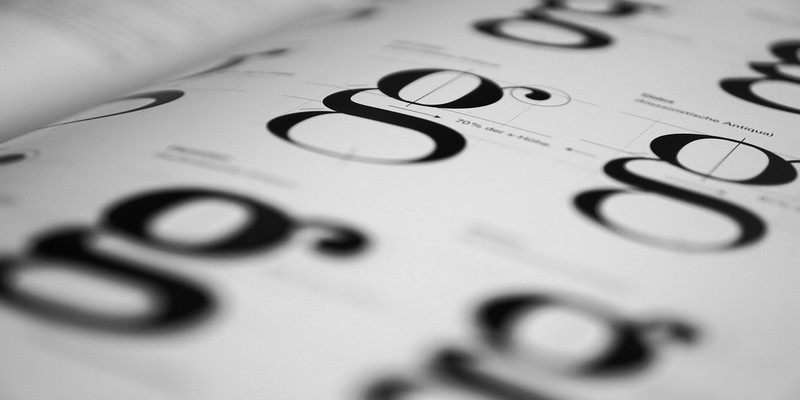
You must have encountered some random images which have some text on it. You always wonder which font this photo has. It would be a great trick if you are able to download a font which you like the most. These fonts are very useful in making meme as they embellish your memes. From designers to members, people are inquisitive about incredible tricks to identify fonts. And, it is not that much hard to identify them. What you need to do is just follow some steps and you are able to identify them.
Steps to identify fonts in an image:
Here are some steps to easily identify fonts on any image.
1. First, you need to download an image. If you are not able to download any image you can simply copy the URL.
2. Now go to the Font Squirrel website.
3. If you can download the image just click on ‘Upload image’. If you have only URL link just click on ‘an image URL’ and paste it.
4. Now you need to highlight the text which is given on an image. For that reason, you need to drag the blue borders. Now the box is covering just the text on the image.
5. It’s the time to click on ‘Matcherate It’.
6. Now you can see a bunch of options below the image. With the help of several options, you can select the correct font. You can either purchase it or download it from the mentioned websites. To see only free fonts just select Font Squirrel below the image.
Steps to identify fonts in an image using Photoshop
Here, we can say Adobe Photoshop is very neat and effective software to let you identify fonts in an image. Follow some steps which are given below.
1. Firstly, you need to download an image which you want to identify.
2. Now open Adobe Photoshop on your computer and with the help of this open the image.
3. It’s time to use the ‘Rectangular marquee tool’. You can also access this tool by pressing M. Now draw a rectangle around the font you want to identify.
4. Now select ‘Type>Match’ Font from the toolbar.
5. Now you have options of either download the matching fonts from the web or pick from those fonts which are already installed on your computer.
Read More Article: Facial Recognition
About author

Best LED Black Friday TV Deals: Your TV Shopping Guide

Discover the best LED Black Friday TV deals for 2026: when sales start, how much you can save on LED, QLED, and OLED TVs, plus tips to spot fake discounts.
Portable Bluetooth Speaker: Best Picks for Your Travel Bag

Looking for a portable Bluetooth speaker for travel? Check out 5 easy-to-carry options with different sound, battery, and durability features.
Budget Gaming PC: The Smart Gamer’s Guide to Saving Money

Looking for a budget gaming PC? Learn how to choose the right GPU, CPU, RAM, storage, PSU, and cooling without overspending.
Why Is My Cell Phone Getting Hot? Learn the Quick Fixes

Wondering why is my cell phone getting hot? Discover the hidden triggers behind your device overheating and learn quick, safe tricks to cool it down fast.
How to Make Your Laptop Run Faster: Easy Ways to Speed Up

Is your laptop slow or freezing? Learn easy ways of How to make your laptop run faster, from clearing files and updating software to upgrading RAM and SSD.
Why Responsible IT Asset Disposition Matters in the Age of Constant Upgrades

Discover why responsible IT asset disposition matters in an upgrade-driven world, helping businesses protect data, reduce waste, and recover asset value.