
Designkit Free Background Remover: Easy Photo Cleanup
If you have an online business, you know how long it takes to create product images. But a great image starts with a clean background. Manually removing backgrounds can take up to your entire afternoon!
This is where tools help. One of the best background remover tools is Designkit, and you know what the fun part is? It is free. Designkit lets you remove the background using a free browser-based tool. No download and no complicated software.
In this post, we will show you what the tool provides, how it works, and who it suits best.
What Is Designkit’s Free Background Remover?
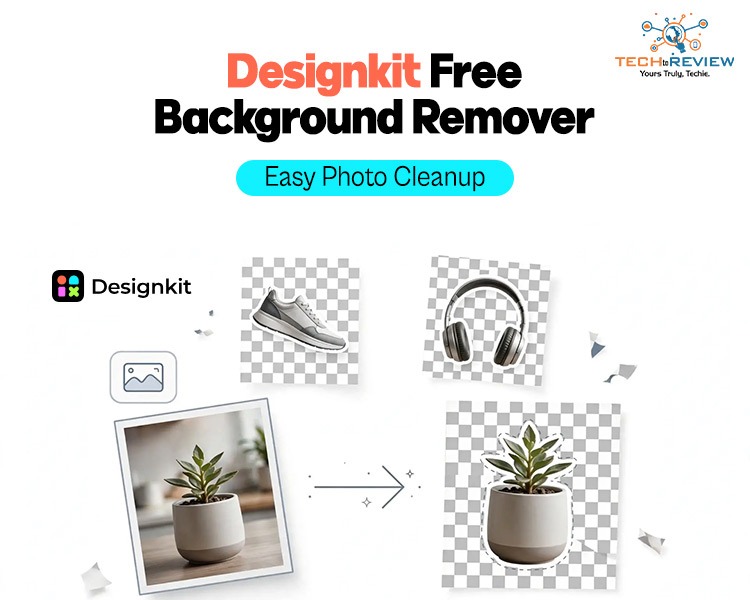
Designkit’s free background remover tool will help you remove the background from your image, leaving a clean object with a transparent background. After removing the background, you can place the image on white or the colour of your choice.
The main features are:
-
Free to use.
-
Up to 100 free background removals per day.
-
Upload up to 15 images at once.
-
Supports JPG, PNG, and WEBP formats.
-
Upload multiple images in a single batch.
-
Download all processed images with the “Download All” button.
You can use “100 images per day” as it has a daily limit of 100 images. But for small business owners, these numbers are more than enough.
How the Workflow Works
The Designkit background remover tool is very easy to use. You just need to follow a few steps, and your image without a background is ready without a watermark.
Step 1:
Search for the Designkit background remover tool on Chrome, Safari, or Google and access the Designkit background removal page; you will get access to the website.

Step 2:
The next step is to upload the image for background removal. You can upload one or multiple images, as this tool accepts JPG, PNG and WEBP files. Also, most of your images from your phone, camera or supplier can be used without converting them.

Step 3:
The background will be removed instantly after uploading the image. You do not need to manually trace around your object or click on small areas.

Step 4:
After the outcome, review your image. Have a quick look through your image. Zoom in on the edges and ensure the smaller areas, such as handles, straps and corners, look nice and clean.
Step 5:
The last step after checking everything is to download your image. Using the “Download” button will allow you to download your finished images. Also, if you are uploading more than one image, you can click on “Download All”, as this will save you time from downloading all the images individually.

You know what the best part is? You can upload and download your images without logging in. If you want to download the high-resolution images, then you have to log in with your email.
What Kind of Photos Work Best?
This tool works best with product and object images. Such as bottles, shoes, bags, gadgets, jewellery, and home items, which have clean lines that make edges easier to detect. Even if the background is busy, the images often come out nice and clean without leaving any trace of the background.
Images with hair or portraits can be more difficult to use. The fine hair can be hard to remove. You may notice some rough areas around the edges. If most of your images are of people, then test a few images first.
Images with good lighting and a clear subject are recommended at the start, as it is easy for the tool to identify the object. This will give the tool more to work with and will give you better results.
Speed and Convenience
The best part about this tool is that you do not have to wait long for the screen to buffer, as this tool works quickly. The speed matters when you have multiple photos, and Designkit is built to process quickly. If you have one image, the tool usually doesn’t take long, but it can depend on your internet speed and the file size. If you are doing a batch of multiple images, then it will take longer.
The tool is very convenient to use, as someone who doesn’t have much knowledge about design can use it easily. No heavy software to open and no paying for a plan to try it out, as it’s all done on one page.
Limits to Know About
No tool is perfect, so here are the honest limits:
-
The daily cap is 100 images, so very large catalogues may need more than one day.
-
Full-resolution downloads may need a login.
-
You should always check each result by eye before you publish it.
Why Should You Choose Designkit?
This free background remover from Designkit is a great choice for online sellers, small business owners and content creators. It’s easy to use, can handle multiple images and has a generous daily limit. It works best with product images, and the ‘Download All’ button will save you time.
If you have a folder of product images to clean up, try using the free background remover from Designkit. Try a few images to see if the batch tool works with your listing workflow.
If you have a folder of product photos waiting to be cleaned up, try Designkit’s free background remover on a small batch first. Check the edges, see how Download All fits your listing routine, and decide whether it earns a place in your workflow.
About author
Designkit Free Background Remover: Easy Photo Cleanup
Remove image backgrounds for free with Designkit. Upload up to 15 images per batch, download them all at once, and get clean product photos with no software.
How Counter-Strike 2 Refreshed the World of Skin Collecting

Discover how Counter-Strike 2 transformed skin collecting with upgraded visuals, redesigned skins, enhanced trading experiences, and new opportunities for collectors.
Essential Hardware for Modern Pop-Up Events

Discover the essential hardware for modern pop-up events, from display stands and lighting to portable fixtures, designed to create impactful, functional event spaces.
16 Bit vs 8-Bit: Which Is Better for Photo Editing?

Learn the difference between 16-bit and 8-bit images, including colour depth, editing flexibility, file size, and which option is best for your photos.
Why Choose SaveFromIns for Instagram Video Downloads?

Instagram has a variety of videos that you can watch, including cooking tutorials, travel guides, educational, product demos and creative reels. If you come across a video that you would like to save, it can be difficult to locate the same post again, with lots of new content in your feed.
How to Download Netflix Series as MP4 on a Laptop

Are you planning a long flight or weekend trip without reliable internet? Downloading your favorite Netflix series in advance seems like the great solution.