
How to Zoom in Photoshop – Tool, Shortcuts & Navigator
In the world of editing, one tool that cannot be beaten is Adobe Photoshop. It can enhance your image so much that you’ll be surprised by the final result. But it can take years to fully understand Photoshop’s tools and effects. Lately, how to zoom in Photoshop has become a new query among newbies. Zooming is a critical function, important to learn and utilise when you want to make detailed and precise edits while still maintaining a fast workflow.
Before we start talking about it, let’s first discuss usage of the zoom tool in Photoshop effectively.
How to Use the Zoom Tool in Photoshop
Photoshop has several tool functions listed in the options bar, which can make it difficult to use. Here are some tools that can make your Photoshop journey easy.
- Magnifying Glass - Well, there are two magnifying glasses; one has a plus sign, and one has a minus sign. Click the plus sign for zoom in or the minus sign for zoom out on the image.
- Resize Window to Fit - This tool works when you’re working with the floating windows. It will make the window smaller as you zoom out and larger as you zoom in.
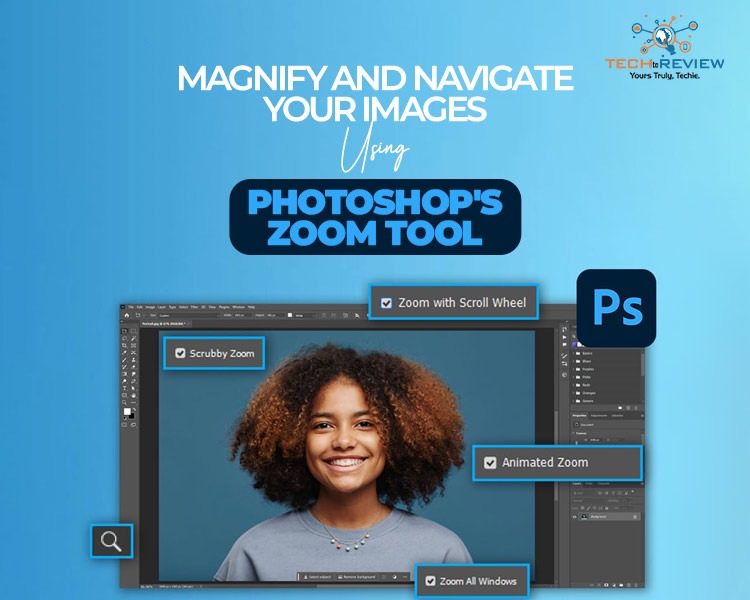
- Zoom All Windows - When you’ve numerous images opened in one of the multiple layout views or various floating windows, this tool will zoom all the images or floating windows simultaneously, so you can stop wondering how to zoom in Photoshop.
- Scrubby Zoom - With the help of this function, you can click and drag the cursor to the right to zoom in or drag the cursor to the left to zoom out.
- Fill Screen - This shortcut is used to make the image fill the screen completely.
How to Zoom In Photoshop: 3 Ways for Precise Editing
Here are the easiest ways to learn how to zoom in Photoshop. Let’s get started.
1.Using the Zoom Tool
Follow these simple steps -
- Open Photoshop.
- Press the Z key on your keyboard or click the Magnifying Glass Icon on the left toolbar.
- Click anywhere on the image to zoom in.
2.keyboard Shortcuts
Learning how to zoom in Photoshop using keyboard shortcuts can streamline your workflow and save you a lot of time. Just Press Ctrl + (Windows), and your image is zoomed in.
3.In-App Navigation Tools (View Menu, Scroll Wheel, Navigator Panel)
To understand how to zoom in Photoshop using three main navigation tools, follow these steps below.
View Menu
- Open the View menu at the top of the screen.
- Click Zoom In to change the view.
Mouse Scroll Wheel
- Press and hold the Alt key on Windows
- Turn your mouse scroll wheel up to zoom in
Navigator Panel
- Go to the window and click Navigator to open the panel
- Move the slider left or right to change the zoom level
- Under the percentage box, type the specific number for an exact size
Now that you’ve learned how to zoom in Photoshop to give a quick touch-up to your image, if you also want to bring depth and shape to your image, learn how to create a luminosity mask in Photoshop to achieve a finished image that still feels true to the moment.
Let’s understand how to zoom out in Photoshop.
How to Zoom Out in Photoshop: 3 Ways to Get a Closer Look
There are three quick ways to learn how to zoom out in Photoshop. Here they are:
1.The Zoom Tool
- Press Z to select the Zoom tool
- Long-press the Alt key so that the magnifying glass changes into the minus sign, then click on the canvas
- Tap the minus sign in the tool options bar at the top of the screen before clicking your image, and zoom out starts step by step
2.Keyboard Shortcuts
You can easily use keyboard shortcuts to zoom out in Photoshop for effective working; just press Ctrl + - on Windows.
3.In-App Navigation Tools (View Menu, Scroll Wheel, Navigator panel)
Follow these steps to zoom out using navigation tools such as
View Menu
- Go to the top application bar and tap on View
- Select Zoom Out to change the view
Mouse Scroll Wheel
- Hold down the Alt Key on Windows
- Scroll down your mouse wheel to zoom out from your cursor
Navigator Panel
- Open the panel by going to Window and clicking on Navigator
- Drag the zoom slider at the bottom of the panel towards the small mountain icon on the left to change the magnification level
Fine-Tuning Your Magnifications
If you want to get a closer look at an image or specific part of an image, the Photoshop zoom tool is one of the most useful functions. It allows you to see your image clearly so you can bring your edit magic to it.
Whether you want to zoom in or do a bit of touch-up work to enhance your image, learning how to zoom in Photoshop is essential. Additionally, you should learn to zoom out to use Photoshop effectively.
Frequently Asked Questions
What is the main benefit of learning to zoom in on Photoshop?
The main benefit of learning to zoom in on Photoshop is letting you see tiny pixels, clean up rough edges, and edit fine details with exact control.
What is Ctrl + T in Photoshop?
The shortcut Ctrl+T in Photoshop opens the Free Transform tool, which lets you resize, rotate, move, and reshape the content of a selected layer or image.
How to zoom 100% in Photoshop?
To zoom 100% in Photoshop using the shortcut keys, press Ctrl + 1 on Windows.
What are the commonly used tools in Photoshop?
Some commonly used tools in Photoshop: the Move Tool, Brush Tool, Crop Tool, Lasso Tool, and Clone Stamp Tool.
About author

How to Download Netflix Series as MP4 on a Laptop

Are you planning a long flight or weekend trip without reliable internet? Downloading your favorite Netflix series in advance seems like the great solution.
From Cards to Screens: The Evolution of Digital Games

Card games and board games used to come with a fair bit of setup. You needed the cards, pieces or board in front of you, and in many cases someone else had to be there too.
RTX 5060 vs RTX 4060: Is the Newer GPU Worth Your Money?
RTX 5060 vs RTX 4060: Compare gaming performance, FPS, GDDR7 vs GDDR6, DLSS features, power consumption, and prices to choose the right GPU in 2026.
How I Reclaimed Crucial SSD Space Without Deleting Essential Data Using Advanced SystemCare 20
I did not want to drag folders to the Recycle Bin and hope for the best. I wanted to free up room without losing documents, photos or settings. That is how I ended up testing Advanced SystemCare 20, a free Windows cleaner from IObit.
Samsung TV Not Connecting to WiFi? Get the Easy Fixes Here
Samsung TV not connecting to WiFi? Learn why it happens, try easy step-by-step fixes, and know what to do if nothing works. Fix & get back to streaming fast.
Rangefinder Digital Cameras: Benefits and Limitations
Discover what a rangefinder in digital camera is, how its focusing works, its advantages and limitations, and why photographers love it for street photography.