
How To Upgrade To Windows 10 For Free In An Easy Go?
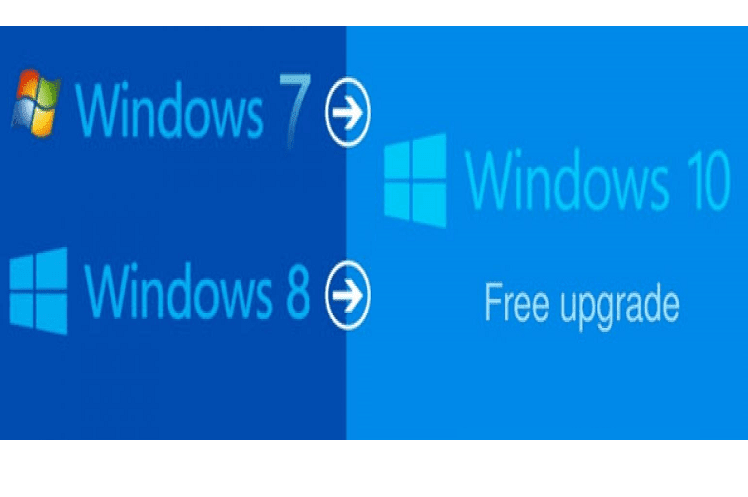
Whether you’re windows 8 or Windows 7 user, you must be searching for how to upgrade to windows 10 for free. Look back to the time, when Microsoft released Windows 10, all Windows 7 or Windows 8 users were allowed to upgrade to Windows 10 for free. Unfortunately, Microsoft made a decision to end this offer in December 2017. Though Microsoft has ended the offer of upgrading Windows 7 & 8 to Windows 10 but you can still make it for free. There is a secret that reveals “How to Upgrade to Windows 10”.
Since Microsoft has stopped providing free updates for Windows 10, devices with Original Windows 7 & Windows 8 license can upgrade to Windows 10. You can do it simply by adopting Windows 10 Media Creation Tool.
If you are a Windows 7 Windows 8 user then you can upgrade your Windows to Windows 10 easily by downloading Media Creation or Tool. Here is how to upgrade to Windows 10 with its Media Creation Tool.
• Download Media Creation Tool
• Upgrade your PC to Window 10
• Connect PC to Internet (After Upgrading)
Your older Windows license will automatically be converted to Windows 10 License after this upgrade. New windows users might fail to understand this method, therefore, a step-to-step guide for How to Upgrade to Windows 10 is given below.
Go-To-Go Guide to assist you in upgrading Windows 7 or 8 to Windows 10
1. Click Here to Visit Download Page in Windows 10
2. Download Windows 10 Media Creation Tool by Click on the ‘Download Tool Now’
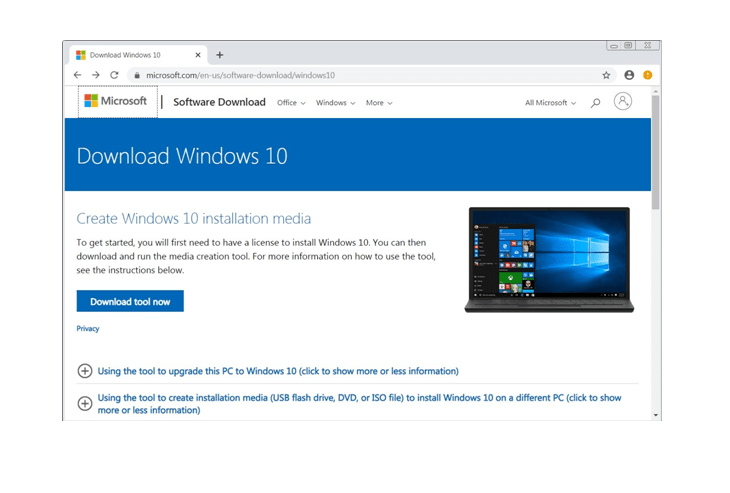
3. Now, Open Media Creation Tool to Accept License Terms & Conditions
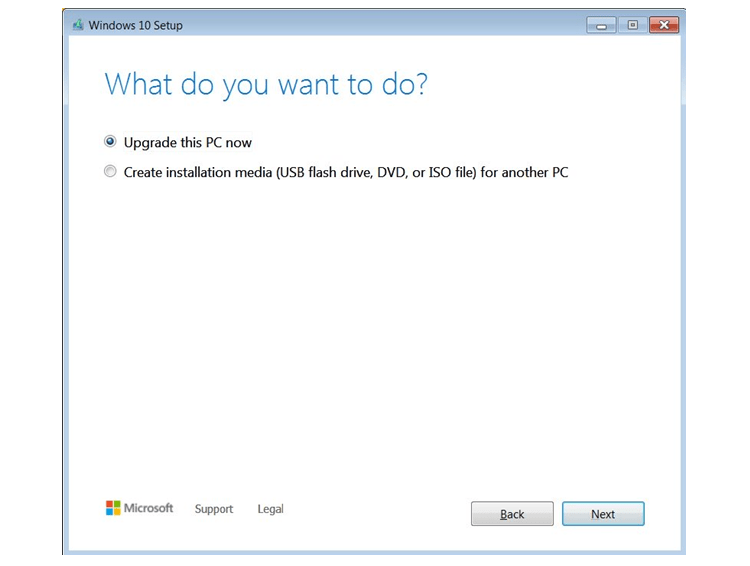
4. Choose ‘Upgrade This PC Now’ and Click through the Next Button
5. Before Installation, You can choose whether you want to keep the files or a fresh new window. Click to keep the personal files and data and continue to install.
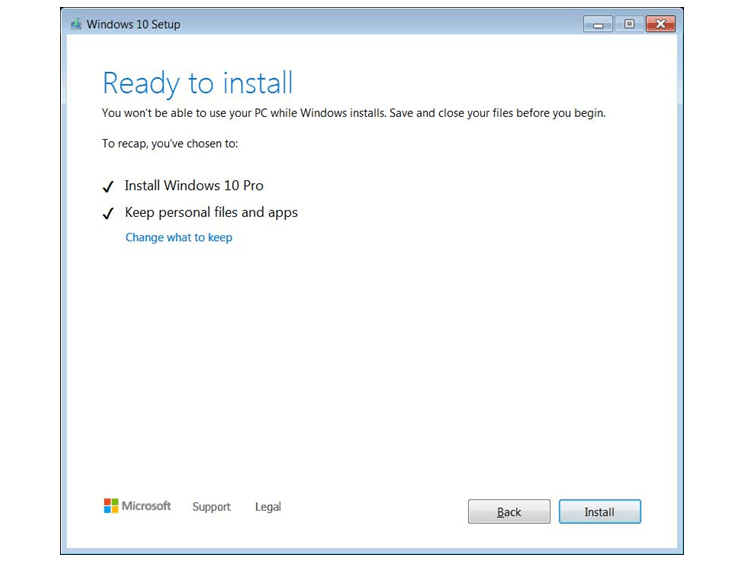
6. Once you save your all files and data, Windows 10 will start installing. It might take a few hours during which the device might restart several times.
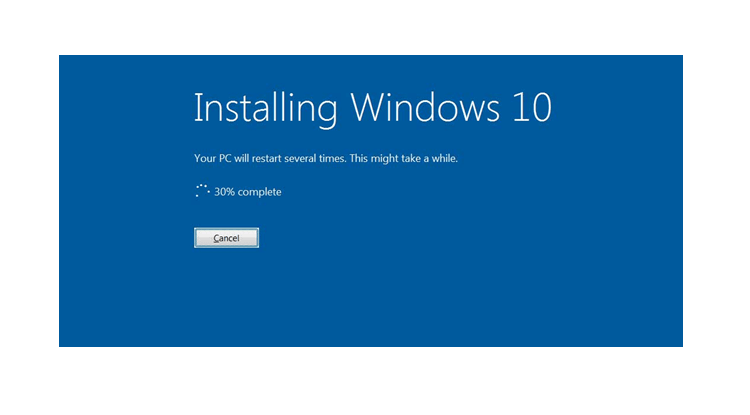
7. After windows installing, connect your PC to the internet and go for open Settings > Windows Update > Activation. You will be upgraded to a Windows 10 license after this process.
Note: In case, the license is not already activated, you can activate the windows by using your Windows 7 or 8 product key)
Kindly remember, this method will help you in upgrading to Windows 10 only if you have genuine windows 7 or 8 licenses.
During this hours-long process of upgrading, your device will connect to the Microsoft activation server which requires a digitalized license and right of windows 10.
Once you go through this method and follow the following steps, your windows will be activated with a digital license. You can ensure this by Setting > Update & Security > Activation.
This new Windows 10 license will connect to your PC until you change the hardware of your device. You can upgrade all devices running on Windows 7 and 8 by this method but ensure the usage of genuine windows first. We hope, you will no longer look for further assistance to upgrade your windows to windows 10.
About author

Why Phone Storage Gets Full Even If You Barely Install Anything

Discover why your phone storage fills up without installing apps. Learn how cached files, photos, hidden downloads, and system data consume space.
Top 5 Entry-Level DSLR Camera Picks to Buy in 2026

Looking for a great beginner camera? Discover the top 5 entry-level DSLR cameras to buy in 2026, featuring the best budget, travel, and video choices.
Best LED Black Friday TV Deals: Your TV Shopping Guide

Discover the best LED Black Friday TV deals for 2026: when sales start, how much you can save on LED, QLED, and OLED TVs, plus tips to spot fake discounts.
Portable Bluetooth Speaker: Best Picks for Your Travel Bag

Looking for a portable Bluetooth speaker for travel? Check out 5 easy-to-carry options with different sound, battery, and durability features.
Budget Gaming PC: The Smart Gamer’s Guide to Saving Money

Looking for a budget gaming PC? Learn how to choose the right GPU, CPU, RAM, storage, PSU, and cooling without overspending.
Why Is My Cell Phone Getting Hot? Learn the Quick Fixes

Wondering why is my cell phone getting hot? Discover the hidden triggers behind your device overheating and learn quick, safe tricks to cool it down fast.