
How to Format an SD Card for a Camera: 101 Guide
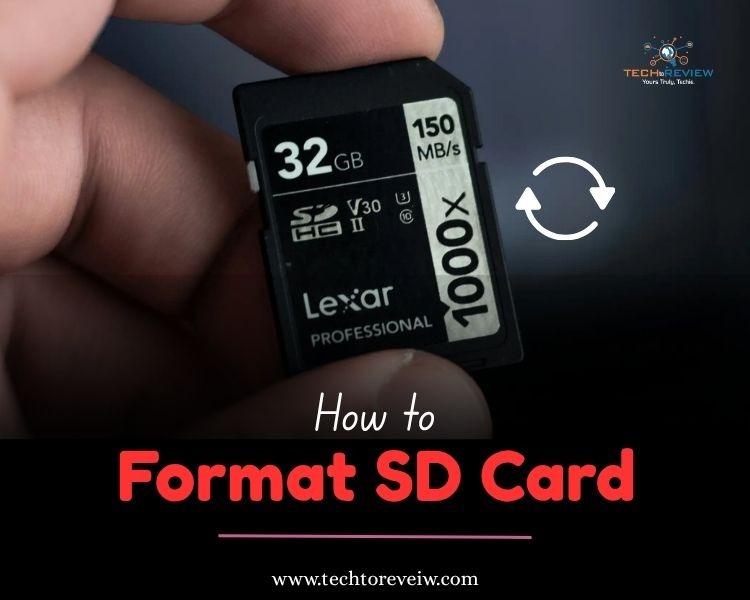
Ever been ready to take the perfect picture, and suddenly your camera shows “Storage Full”?
This is really frustrating and a little embarrassing, especially when you are at a family event or covering an important shoot. Suddenly, you’re busy deleting unnecessary photos one by one while everyone is enjoying the moment. This is easy but a long process that can spoil your special moment.
At this time, searching online for ‘how to format an SD card for a camera’ and getting an instant solution is the best idea. Now you have landed on the right page, so the process becomes easier with easy-to-follow steps. Let’s check and free up space on your SD card so you can capture special moments.
A Simple Guide to How to Format an SD Card for a Camera
The best way to format an SD card is through a camera. Just follow the process of ‘how to format a SD Card,’ and you’re all done.
Step 1: If you have removed the SD Card, place it and turn the camera on.
Step 2: Press the Menu button and go to Settings.
Step 3: Look for the options, such as
- Format Card
- Format Memory Card
- Initialize Card
The exact option may vary depending on the camera brand.
Step 4: Select the option and press ‘Confirm’
Step 5: Wait for the completion.
The process of ‘how to format an SD Card for a camera’ takes just a few seconds.
Step 6: Once you receive a message ‘Completed’, your SD card is ready to use again.
Why Do You Need to Format an SD Card?
What do you think, a full storage is the only reason when you need to learn and follow steps for ‘how to format a SD Card’? No, there can be several instances or reasons to format your memory card.
Here are a few reasons why you need to learn ‘how to format an SD card for a camera.’
- Reduce the chance of file error
- Improves camera performance
- Ensures compatibility between the card and the camera
- Creates a file structure optimised for your camera
- Prevent storage issues in important moments
Formatting an SD card is important before any important event. This takes less than a minute and saves you from unnecessary hassle during crucial moments.
How Can I Format SD Card on a Computer?
A computer is another good option to empty your memory card. Knowing how to format an SD card for a camera on a computer is essential to make the most of it.
Steps to follow:
- Insert the SD Card into your computer.
- Open File Explorer (Windows) or Finder (Mac).
- Locate the SD Card
- Right-click and select ‘Format.’
- Choose the recommended file system.
- Start the formatting process.
Remember Before Formatting SD Card
Before you start following the ‘how to format an SD Card for a camera’ process, consider a few things.
- Backup your data before you initiate ‘How can I format SD card?’
- Never remove the card while the process is running. Doing so may corrupt the card.
- Do not switch the card between multiple devices without formatting. It may cause compatibility issues.
- If your camera repeatedly asks you to format the card, don’t ignore the warning. Maybe it is a file system problem.
Knowing how to format an SD Card for a camera is important for peace of mind and smooth photography sessions. Just ensure you choose the best SD Card for a smoother experience.
Frequently Asked Questions
Will formatting delete my photos?
Yes, formatting deletes all the files stored on the SD Card. Back up your files to save them from being deleted.
Is formatting the same as deleting?
No, deleting and formatting are different.
Deleting removes the selected files, and formatting resets the entire card.
Should I format a brand-new SD card?
You can do it to ensure compatibility and smooth performance.
Is it better to format a card on a camera or a computer?
Formatting directly on the camera is generally preferred because it prepares the card according to the camera’s requirements.
How long does formatting take?
Most SD takes just a few seconds. In general, it is not more than a minute process if you know the exact steps on how to format an SD card for a camera.
About author

From Cards to Screens: The Evolution of Digital Games

Card games and board games used to come with a fair bit of setup. You needed the cards, pieces or board in front of you, and in many cases someone else had to be there too.
RTX 5060 vs RTX 4060: Is the Newer GPU Worth Your Money?
RTX 5060 vs RTX 4060: Compare gaming performance, FPS, GDDR7 vs GDDR6, DLSS features, power consumption, and prices to choose the right GPU in 2026.
How I Reclaimed Crucial SSD Space Without Deleting Essential Data Using Advanced SystemCare 20

I did not want to drag folders to the Recycle Bin and hope for the best. I wanted to free up room without losing documents, photos or settings. That is how I ended up testing Advanced SystemCare 20, a free Windows cleaner from IObit.
Samsung TV Not Connecting to WiFi? Get the Easy Fixes Here
Samsung TV not connecting to WiFi? Learn why it happens, try easy step-by-step fixes, and know what to do if nothing works. Fix & get back to streaming fast.
Rangefinder Digital Cameras: Benefits and Limitations

Discover what a rangefinder in digital camera is, how its focusing works, its advantages and limitations, and why photographers love it for street photography.
Why Phone Storage Gets Full Even If You Barely Install Anything

Discover why your phone storage fills up without installing apps. Learn how cached files, photos, hidden downloads, and system data consume space.