
How To Delete Your Twitter Account From Desktop, Android And IOS

Twitter is unarguably an amazing platform for the exchange of all types of information and knowledge. Whether it’s a Breaking News related to Tech, Bussiness, Poll Results, Sports, Recreational Videos or Memes. Twitter circulates the most essential information from all industries. However, this entertainment can turn out to be most unpleasant and overwhelmed at a point.
If you have been fed up with creepy political-statics and hatred comments then it might be the right time to tweet the last quote from your account. Fortunately, deleting a twitter account is much easier than messing up with Machiavellian newbies. Whether you want a short break or permanently deactivate your account, here is ‘How to Delete Your Twitter Account’.
“In order to delete your twitter account permanently, first you need to deactivate it. Although you will be eligible to reactivate your account within 30 days but, after this period your information will be erased and you wouldn’t be able to get it back ever. ”
How to Delete Twitter Account on Desktop?
1. Click on the profile icon and choose ‘Settings and privacy’

2. Scroll down in the Account Tab and click on ‘Deactivate Your Account’
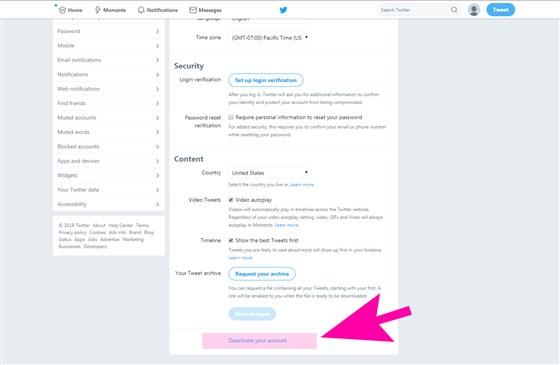
3. Go through the information before Deactivating your account

4. Enter your password to confirm your deactivation request

This is how to delete your account on the desktop in 4 simple steps.
How to Delete Twitter Account- Android Users
1. Tap on the profile icon available in the top left corner and select ‘Settings and privacy’
.jpg)
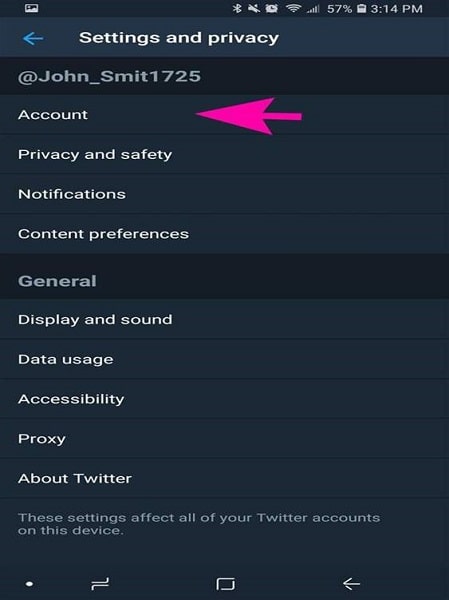
2. Tap on “Account.” under settings and privacy
3. Scroll down and tap on “Deactivate Your Account.” (Don’t Logout)

4. Reach the bottom of the page and tap on “Deactivate.”
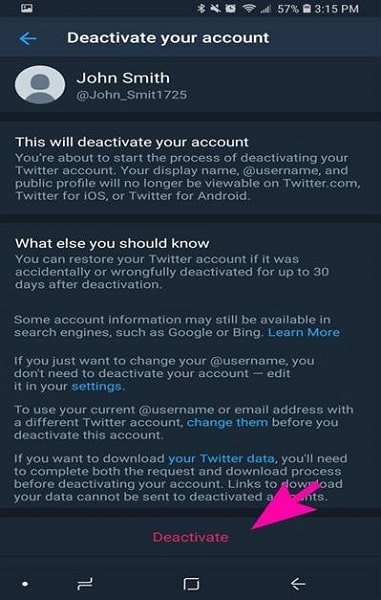
5. Type your Twitter password for final confirmation

This is how to deactivate your Twitter handle on Android. But make sure not to look back before 30 days for permanent deactivation.
How to Deleter Twitter Account in iPhone/IOS
1. Tap on your profile picture in the left corner and select “Settings and privacy.”

2. Choose “Account.”

3. Scroll to the bottom and select “Deactivate Your Account.”
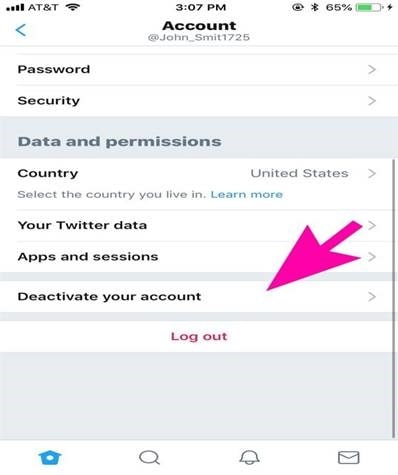
4. Tap on “Deactivate” at the bottom of this page

5. Now, type your password to approve deactivation request

Deactivating your twitter handle will delete your account temporarily. You can get back to your handle within a period of 30 days. If you want it to delete permanently then don’t log in for 30 days after deactivation.
About author

Why Phone Storage Gets Full Even If You Barely Install Anything

Discover why your phone storage fills up without installing apps. Learn how cached files, photos, hidden downloads, and system data consume space.
Top 5 Entry-Level DSLR Camera Picks to Buy in 2026

Looking for a great beginner camera? Discover the top 5 entry-level DSLR cameras to buy in 2026, featuring the best budget, travel, and video choices.
Best LED Black Friday TV Deals: Your TV Shopping Guide

Discover the best LED Black Friday TV deals for 2026: when sales start, how much you can save on LED, QLED, and OLED TVs, plus tips to spot fake discounts.
Portable Bluetooth Speaker: Best Picks for Your Travel Bag

Looking for a portable Bluetooth speaker for travel? Check out 5 easy-to-carry options with different sound, battery, and durability features.
Budget Gaming PC: The Smart Gamer’s Guide to Saving Money

Looking for a budget gaming PC? Learn how to choose the right GPU, CPU, RAM, storage, PSU, and cooling without overspending.
Why Is My Cell Phone Getting Hot? Learn the Quick Fixes

Wondering why is my cell phone getting hot? Discover the hidden triggers behind your device overheating and learn quick, safe tricks to cool it down fast.