
How To Add Multiple User Accounts On Google Home?

Speakers have always been a really nice experience. A nice and smarter speaker is only that, which has the capability of performing a wide variety of tasks including things like giving an overview of the day, videos to Cast-enabled devices, casting photos and a lot more. Although, prior one of the shortcoming of this smart speaker, it was unable to identify varieties of voices and also render personalized results for them. As a result, if two users want to share the same device, they’d have to share their music playlists, and many more.
Luckily, Google has now updated Google home to support multiple users. This updation makes Google Home App more feasible and interesting. If you are impressed with this feature and like to set up multiple users on your Google smart speaker then update your Google Home App or download the APK version of the app now.
But let us tell you one thing, before adding other accounts to the Google Home Device, the device must recognize our voice properly. And it can be done with some simple steps.
1. Firstly, you need to launch the Home app and click on the hamburger menu icon placed on the top left corner and tap on “More Setting”.

2. In the “Google Assistance” setting page, scroll down and tap on the “shared devices”. Now click on the ‘+’ icon that is placed on the bottom right corner to add a new shared device.
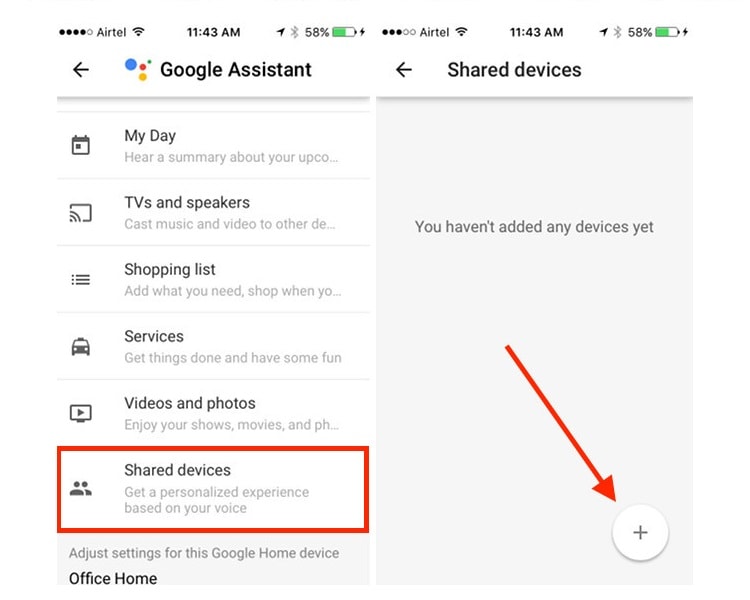
3. Once you are done with this, the Google app will automatically detect any connected devices, and you can select the device you want to add just like a shared device. Now select Google Home Device and tap on ‘Continue’.
.jpg)
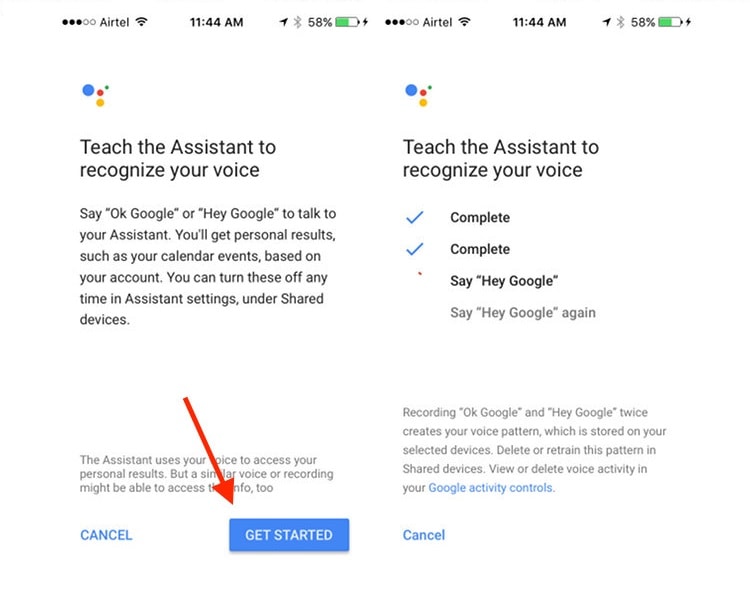
4. Furthermore, you’ll have to teach Google assistance to recognize your voice. Now, tap on “Get Started”. Then follow the instructions on the app.

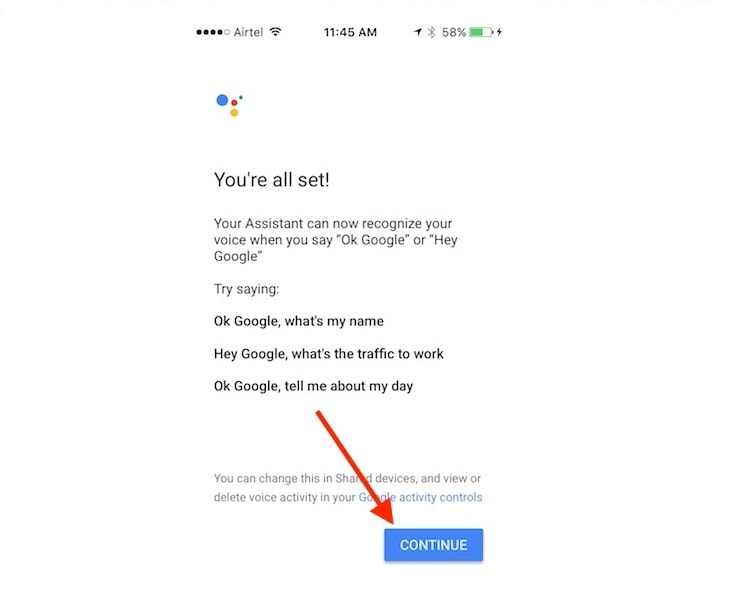
5. After you have done this, click on “Continue”. Now Google home will able to recognize your voice and give you personalized updates when you ask it for them.
Hopefully, with the help of the above steps, you have ensured that Google home can recognize your voice.
Let’s discuss how to add multiple user accounts on Google home.
This process can be done on your phone only with the help of Google Home App. Here are the steps below:
1. Download the Google Home App
.jpg)
The first thing you need to do is to launch the Google Home App and click on the hamburger menu icon placed on the top left corner. Click on the little arrow placed right next to your Email ID.
2. If any other user’s account is already added on your phone, then simply hit on it to switch to that user, and set up voice recognition. Or tap on “Manage Accounts” then “Add Account”.

3. Now, enter the credentials for the account you wish to add. Once you add the account, you can just go to the hamburger menu again, and hit on “More Settings”.

4. Once you have done this, you can just go to “Shared Devices” option and then click on the ‘+’ icon to add the Google Home to your shared devices.

5. Now, you can ask other users to set up their voice for the Google home to recognize. Once they are done, just click on ‘continue’. Google Home will now be able to differentiate between two voices and next time one of you says ‘what does my day look like?’ the Google Home will recognize your voice.
Read More Article: Google Chrome’s ‘Secret’Reader Mode
About author

Best LED Black Friday TV Deals: Your TV Shopping Guide

Discover the best LED Black Friday TV deals for 2026: when sales start, how much you can save on LED, QLED, and OLED TVs, plus tips to spot fake discounts.
Portable Bluetooth Speaker: Best Picks for Your Travel Bag

Looking for a portable Bluetooth speaker for travel? Check out 5 easy-to-carry options with different sound, battery, and durability features.
Budget Gaming PC: The Smart Gamer’s Guide to Saving Money

Looking for a budget gaming PC? Learn how to choose the right GPU, CPU, RAM, storage, PSU, and cooling without overspending.
Why Is My Cell Phone Getting Hot? Learn the Quick Fixes

Wondering why is my cell phone getting hot? Discover the hidden triggers behind your device overheating and learn quick, safe tricks to cool it down fast.
How to Make Your Laptop Run Faster: Easy Ways to Speed Up

Is your laptop slow or freezing? Learn easy ways of How to make your laptop run faster, from clearing files and updating software to upgrading RAM and SSD.
Why Responsible IT Asset Disposition Matters in the Age of Constant Upgrades

Discover why responsible IT asset disposition matters in an upgrade-driven world, helping businesses protect data, reduce waste, and recover asset value.