
How to Transfer Data to New Phone: Step-by-Step Guide
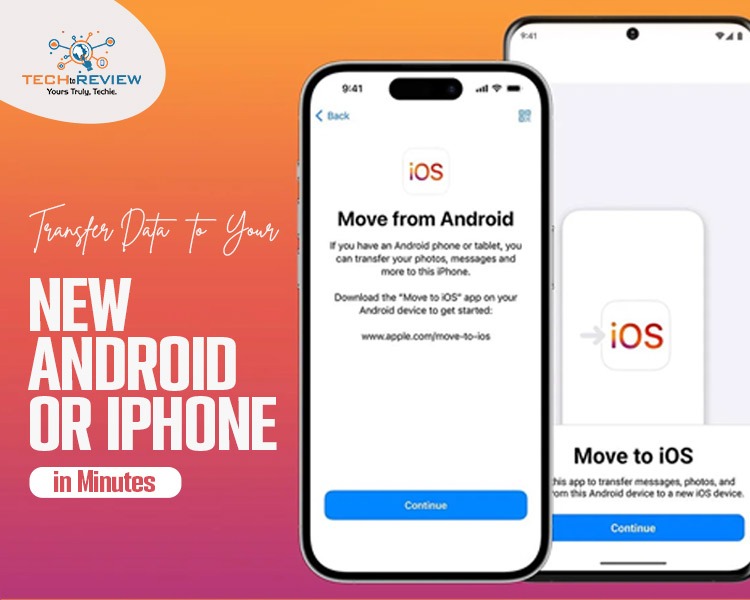
Swapping out your old phone for a new one is an exhilarating experience! You get a more efficient phone, a sleeker design, and a much better quality of camera too. All that excitement can fade rather quickly, however, when you find yourself facing the task of transferring everything on your old phone to your new one.
The good news is that transferring your information need not be a daunting task. Whether it’s an upgrade to the same manufacturer or an entirely new platform, learning how to transfer data to new phone setups is actually pretty easy once you know what to do.
This blog will take you through the most straightforward methods to get your data transferred so you can immediately start enjoying your new device!
Pre-Transfer Checklist: Do This First!
Before we jump into how to transfer data to new phone, do these quick things so everything goes smoothly:
- Back Up Your Old Phone: Save a copy of your photos and data to the cloud or your computer, just in case.
- Charge Both Phones: Make sure both devices have at least 50% battery ( or you can just plug them into the charger) so they don't turn off midway.
- Update Software: Check for system updates and get both phones to the latest version.
- Connect to Wi-fi: Hook up both phones to a fast, stable Wi-fi network.
Once you've checked these off, you're all set to make the move!
How to Transfer Data from Android to Android
If you are staying within the Android ecosystem, moving your digital life from your old phone to your new one takes just a few minutes thanks to Google’s built-in tools
Option 1: Cable or Wireless Setup During Initial Setup
1.Power It Up: Switch on your new Android mobile device.
2.Connect the Mobile Devices: Select whether you want to connect via a USB cable or wirelessly when you are asked to transfer apps and data.
3.Pair the Two Mobile Devices: On your old Android mobile device, launch the Google app and enter or say “Set up my device”.
4.Verification: Make sure the same shapes and numbers appear on both screens and select Next.
5.Transfer Apps and Data: Select the things which you wish to transfer from your old Android mobile device.
Option 2: Google One Cloud Backup
If you prefer not to connect the devices directly, you can use your Google account:
- On your old phone, go to Settings > System > Backup and ensure Backup by Google One is toggled on. Tap Back up now.
- On your new device, sign in with the same Google Account during setup and choose Restore from Cloud Backup.
How to Transfer Data from iPhone to iPhone
Apple makes upgrading within its ecosystem virtually effort-free. When figuring out how to transfer data from iphone to iphone, Quick Start is your best friend.
Step-by-Step: Using Apple Quick Start
1.Bring Phones Together: Turn on your new iPhone and place it right next to your current iPhone. Ensure Bluetooth and Wi-Fi are enabled on your old device.
2.Initiate Quick Start: A prompt will appear on your old iPhone asking if you want to use your Apple ID to set up the new phone. Tap Continue.
3.Scan the Animation: An animated pattern will appear on your new screen. Hold your old iPhone over the new one to capture the image in the camera viewfinder.
4.Enter Passcode: When prompted, enter your current phone's passcode on the new iPhone and configure Face ID or Touch ID.
5.Start Data Migration: Select "Transfer directly from iPhone" and keep both devices close together until the progress bar completes.
How to Transfer Data from Android to iPhone
Changing from one device to another can be really great, but moving your data might feel like a nightmare. But worry not! The best thing about learning how to transfer your data from Android to iPhone is that it’s actually very simple to do nowadays. Even Apple has created an application for that matter.
Step-by-Step: Move to iOS
1.Preparation for Android Phone: Download the Move to iOS application from the Google Play Store.
2.Preparation for iPhone: Start your new iPhone and go through its initial set-up process until you see the "Apps & Data" screen.
3.Select Transfer Option: Choose Move Data from Android.
4.Generating a Code: Start the "Move to iOS" app from your Android smartphone and confirm the terms. You will see a 6-digit or 10-digit code displayed on the iPhone's screen. Enter that code on your Android smartphone.
5.Selection of Content: Select the type of content you wish to move from your Android device, which could include contacts, messages, camera images, WhatsApp conversations, and display settings.
6.Complete Transfer: Wait for the loading bar to finish on your iPhone before touching either device.
Ready to Enjoy Your New Phone!
Now that your transfer is at 100%, take a quick glance to ensure that all of your photos, messages, contacts, and other necessary files have been transferred to your new phone.
After you have checked and found everything alright, it’s time to reset your old phone to factory settings, which in turn means that your phone is ready to be traded-in or even recycled.
Knowing how to transfer data to a new phone is an easy process that will save you both time and keep all of your precious information intact. Enjoy your new Android or iPhone and its amazing features!
FAQ:
1.Do I put my SIM card in a new phone before transferring data?
You don't need your SIM card inside the new phone to transfer data. It uses Wi-Fi, Bluetooth, or cables instead.
Best tip: Keep the SIM in your old phone during the transfer so you don't miss calls.
2.Does removing a SIM card erase everything on a phone?
Don’t worry, you will not lose anything! Taking out your SIM card will not delete your photos, videos, apps, or messages. It only stops your phone from using your mobile network.
3 Can I still receive messages if my SIM card is removed?
Without a SIM card, you cannot get normal text messages. However, if your phone connects to Wi-Fi, you can still receive messages through internet apps like WhatsApp, Messenger, or iMessage.
About author

Why Is My Cell Phone Getting Hot? Learn the Quick Fixes

Wondering why is my cell phone getting hot? Discover the hidden triggers behind your device overheating and learn quick, safe tricks to cool it down fast.
How to Make Your Laptop Run Faster: Easy Ways to Speed Up

Is your laptop slow or freezing? Learn easy ways of How to make your laptop run faster, from clearing files and updating software to upgrading RAM and SSD.
Why Responsible IT Asset Disposition Matters in the Age of Constant Upgrades

Discover why responsible IT asset disposition matters in an upgrade-driven world, helping businesses protect data, reduce waste, and recover asset value.
3:2 vs 16:9: Which Aspect Ratio Should You Choose

Wondering about 3:2 vs 16:9 aspect ratios? Learn the key differences, best use cases, and limitations to pick the right one for your shots.
Fujifilm X100T Review: Real-World Quirks No One Talks About

Discover real-world Fujifilm X100T quirks no one talks about. Learn the truth about battery life, macro parallax errors, and ND filters.
Find the Absolute Best Streaming TV Service in 2026

Ditch expensive cable with confidence! Discover the 10 absolute best streaming TV services in 2026, from YouTube TV to Netflix, for your perfect setup.