
Samsung TV Picture Settings: Select Your Best Mode
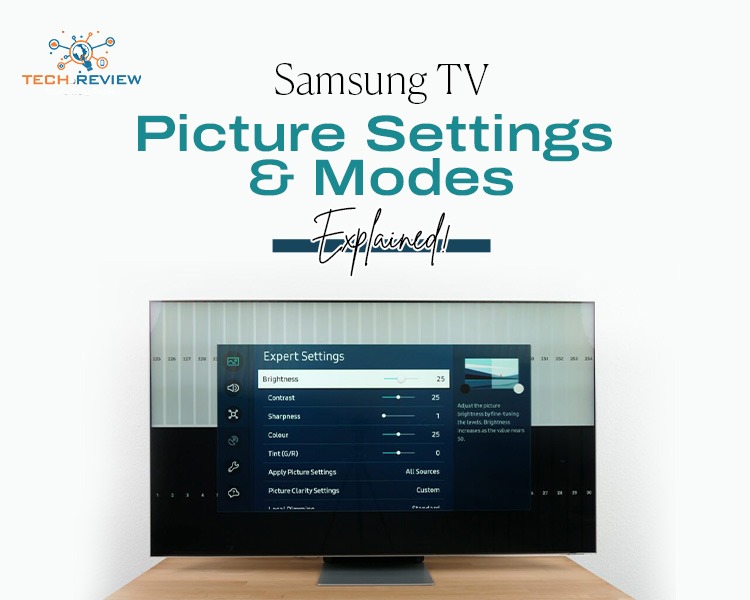
Since 1970, Samsung has continued to shape the TV industry with its research, innovation, and evolution of picture quality. Samsung TVs offer various options for sharp resolution and a clear image for an enhanced watching experience. However, it’s not that straightforward. For the best possible experience, you need to be on the right Samsung TV picture settings.
All it takes to understand Samsung TV settings is to pick the mode you like and enjoy the best picture quality, no matter what you’re watching.
What Are the Samsung TV Picture Settings
Samsung TVs offer preset picture modes so you can easily alter the picture settings and viewing modes for cinema-like visualisation at home.
Let’s start by assessing the ‘Picture Mode’ setting on your Samsung TV.
- Open the Settings on your TV.
- Select Picture.
- Scroll down and click on Picture Mode.
After you've clicked on Picture Mode, you will see a set of different modes. Choosing the one that suits your visualisation needs can be overwhelming. This is why we’ve listed every picture mode from Samsung TV picture settings to help you select the one that aligns with your needs while maximising your viewing.
Samsung TV Picture Settings Modes
Let’s briefly talk about Samsung TV picture modes for a high-quality viewing experience.
1.Dynamic Mode
Dynamic mode shows vivid visuals even in the brightest of environments. It lets you enjoy the visuals vividly and clearly during the day or in well-litareas.
It helps all the TV’s hardware and software work smoothly, giving you a clear picture, better colours, more brightness, and sharp image quality. So go to Samsung TV picture settings and choose dynamic mode for clear, bright visuals.
2.Standard Mode
Standard mode is the default mode your TV has every day. It’s good for daily viewing, giving you a clear and comfortable brightness that doesn’t strain your eyes easily in most indoor lighting conditions. Standard mode also keeps the power consumption very low.
This mode is suitable for balanced viewing anytime, anywhere.
3.Natural Mode
Natural Mode automatically adjusts the picture quality based on how bright or dark the scene is. It displays these changes in a way that feels more comfortable in your eyes without hurting them.
If you're sensitive to bright light or strong colours, pick this mode from Samsung TV picture settings for a better viewing experience.
It provides a balanced level of brightness that helps reduce eye strain and makes it more comfortable to watch TV for longer.
4.Movie Mode
Want to have a movie-like experience at home? This mode should be your best pick. Movie mode is designed to show movies the way filmmakers and content creators intended. It delivers accurate picture quality and is the setting most experts use when reviewing TVs
Choose this picture mode from Samsung TV picture settings for a cinema-like experience, especially when you’re watching in a slightly darker room.
5.Filmmaker Mode
Well, this mode is similar to movie mode, as it is designed to let you watch movies the way a filmmaker intended.
But what sets it apart is that on supported UHD TVs, it keeps original picture settings, including the aspect ratio, colours, and frame rate.
Filmmaker mode is perfect for enjoying a more authentic, true-to-life cinematic experience at home.
Smart Calibration - Know the App to Navigate Samsung TV Picture Quality
Smart Calibration is the app introduced by Samsung in 2022. The app works amazingly, allowing users to precisely adjust picture quality on Samsung TVs to optimise their viewing. The app offers so many features, and it's easy to learn how to use it to enjoy a better viewing experience.
An automated display picture quality app helps users to calibrate Samsung TV display quality with the touch of a button from their smartphone. However, it is not compatible with all TVs, so check compatibility before using this app.
You May Also Like: Beyond Stereo: What Is Spatial Audio and How Does It Work?
Enhance Your Samsung TV Picture Quality!
Over the years, Samsung has built a reputation in the TV industry by selling the largest number of TVs and still continues to do so. The evolution of image quality which cannot be ignored if you want to satisfy your customers. That's exactly what Samsung has been doing.
Optimising innovative technologies every year and improving the image quality of its TVs is what’s helping customers love Samsung a little more. Now that Samsung has introduced various visualisation modes to enhance your TV picture quality through its apps.
Frequently Asked Questions
1.Who is the CEO of Samsung?
Samsung operates under a co-CEO system with two main heads, including Young Hyun Jun and Roh Tae Moon.
2.Which mode is best for everyday use?
Standard mode is an all-rounder choice on Samsung TVs because it balances brightness and contrast for mixed lighting.
3.From where can I download the Samsung Smart Calibration app?
You can download the app from the Google Play Store for professional displays, or use the integrated smart calibration feature in the SmartThings app on Android or iPhone.
4.Why did Samsung introduce picture modes in TVs?
Samsung introduced picture modes on its TVs to help users enjoy the best picture quality at home.
About author

Portable Bluetooth Speaker: Best Picks for Your Travel Bag

Looking for a portable Bluetooth speaker for travel? Check out 5 easy-to-carry options with different sound, battery, and durability features.
Budget Gaming PC: The Smart Gamer’s Guide to Saving Money

Looking for a budget gaming PC? Learn how to choose the right GPU, CPU, RAM, storage, PSU, and cooling without overspending.
Why Is My Cell Phone Getting Hot? Learn the Quick Fixes

Wondering why is my cell phone getting hot? Discover the hidden triggers behind your device overheating and learn quick, safe tricks to cool it down fast.
How to Make Your Laptop Run Faster: Easy Ways to Speed Up

Is your laptop slow or freezing? Learn easy ways of How to make your laptop run faster, from clearing files and updating software to upgrading RAM and SSD.
Why Responsible IT Asset Disposition Matters in the Age of Constant Upgrades

Discover why responsible IT asset disposition matters in an upgrade-driven world, helping businesses protect data, reduce waste, and recover asset value.
3:2 vs 16:9: Which Aspect Ratio Should You Choose

Wondering about 3:2 vs 16:9 aspect ratios? Learn the key differences, best use cases, and limitations to pick the right one for your shots.